1. Power Reset
Unplug soundbar & TV, wait 30s, then plug back in.
Common Fix
Are you struggling to get your Sony soundbar connected via HDMI? You’re not alone. Many users face this frustrating issue, but knowing how to troubleshoot effectively can save you time and restore your audio experience. Here’s what you’ll learn from this guide.
This visual outlines the essential steps to diagnose and fix common eARC HDMI connection issues with your Sony soundbar, ensuring a seamless audio experience.
Unplug soundbar & TV, wait 30s, then plug back in.
Ensure secure cables, inspect for damage, try new cable.
Confirm both TV & soundbar support eARC.
Check audio output/input settings on both devices.
Keep TV and soundbar software up-to-date.
Fine-tune sound settings for optimal performance.
Having trouble with your Sony soundbar eARC HDMI connection? You’re not alone! Many users encounter issues that can be frustrating. In this section, we’ll explore common problems, their symptoms, and essential steps to get your soundbar back on track.
Understanding why your HDMI connection isn’t working is the first step to resolving the issue. From faulty cables to incorrect settings, numerous factors can contribute to the problem. Let’s dive into the details!
When your soundbar refuses to connect via HDMI, several symptoms may arise. Recognizing these early can help you troubleshoot effectively. Here are some common symptoms of HDMI connection failures:
These symptoms can often lead to confusion, especially if you’re unsure where the problem lies. But don’t worry; we’ll guide you through this.
As mentioned, the first sign that something’s off is usually a lack of audio from the soundbar. You might also notice that your television is not recognizing the soundbar at all! Understanding these symptoms can save you time and energy in your troubleshooting process.
It’s also essential to keep an eye on your sound settings. If you’re experiencing intermittent audio dropouts, this could indicate a loose connection or an incompatible setting. Addressing these issues early can prevent further frustration.

Users often report feelings of anxiety when their soundbar isn’t functioning correctly. It can be challenging to enjoy your favorite shows or games without proper sound! When issues arise, you might experience sudden silence, requiring you to frequently adjust settings or restart devices.
Being prepared for these potential experiences can help ease some stress. Knowing what to check and what to expect can make troubleshooting more manageable.
Device compatibility plays a significant role in whether you can connect your soundbar successfully. If your TV and soundbar are not fully compatible, even an eARC connection might not work. Always verify that both devices support eARC, as some older models may not. For more detailed information on setting up eARC with your Sony TV, refer to the Sony Help Guide for BRAVIA TVs.
Additionally, keeping your firmware updated and ensuring that all devices are on compatible settings can make a world of difference. Compatibility is key to achieving seamless audio experiences!
Now that we’ve identified potential problems, let’s look at essential steps to fix your Sony soundbar eARC HDMI connection. Follow these steps to troubleshoot effectively:
Following these steps should help you detect and resolve the issue causing your HDMI connection to fail. Remember, taking your time with each step can prevent further complications!
The first step in troubleshooting is performing a power reset. To do this, simply unplug both your soundbar and TV from the power source. Wait for at least 30 seconds, then plug them back in. This simple action can often resolve connectivity problems. For more information on general troubleshooting for sound issues, check out Sony’s support article on no sound from the TV or audio system.
After rebooting, check if the connection is working. If not, don’t worry—there are more steps to explore!
Next, it’s time to look at your HDMI connections. Make sure the HDMI cable is securely plugged into both your soundbar and TV. Inspect the cables for any damage or wear, as this could be the culprit behind your connection problems.
Also, try switching out the HDMI cable for a known working one. Sometimes, a faulty cable can go unnoticed, leading to frustrating experiences.
Compatibility issues can often cause major headaches. Ensure that both your TV and soundbar support eARC technology. Check the manufacturer’s specifications for both devices to confirm this.
If your devices are compatible, there shouldn’t be any issues establishing a connection. However, if not, you may need to look into alternative connection methods!
Next, let’s check the configuration settings. On your TV, navigate to the audio settings and ensure that the HDMI output is enabled. Your soundbar settings may also need to be adjusted to ensure compatibility. If you’re experiencing sound issues specifically when using a soundbar via HDMI ARC/eARC, Sony provides a helpful troubleshooting guide on how to fix TV sound issues with an audio system.
Sometimes, audio settings can cause conflict, so it’s important to ensure everything is properly set to work together.
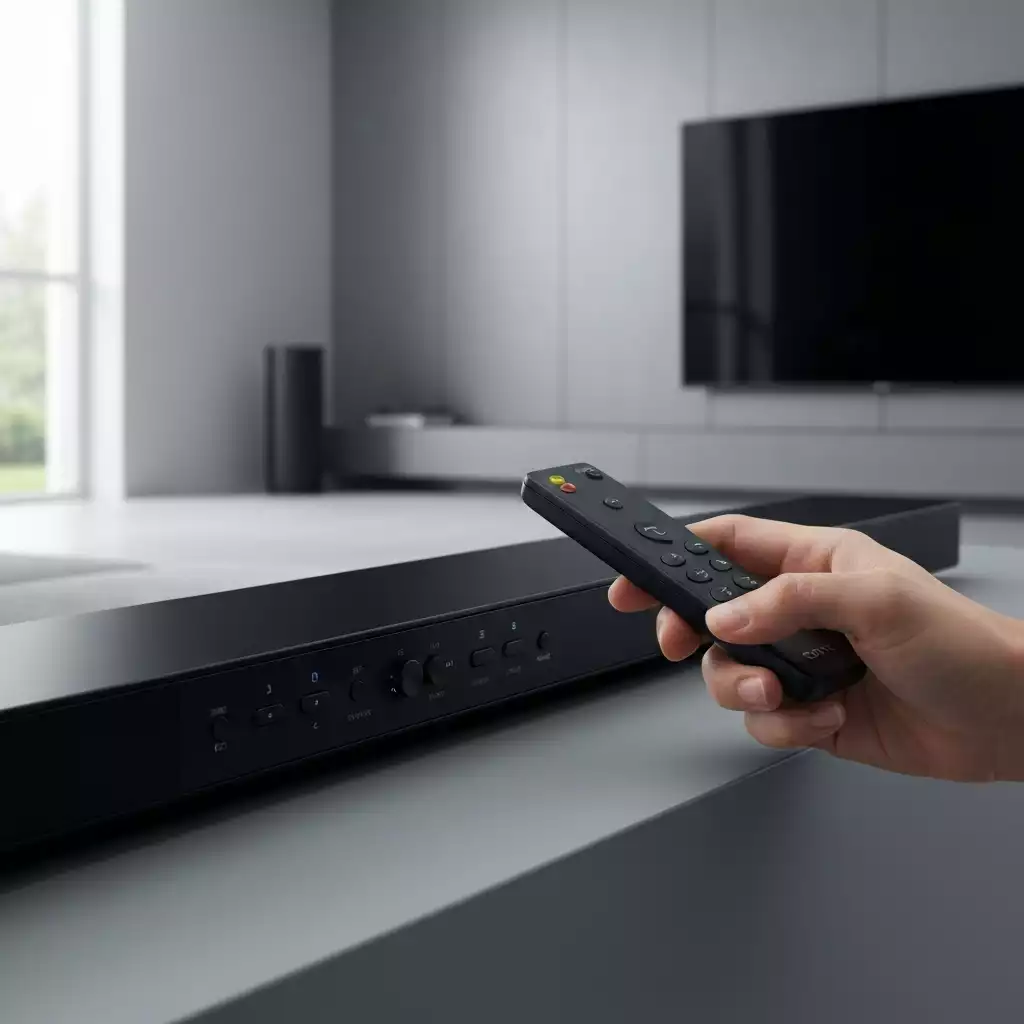
Keeping your devices up-to-date is crucial for a seamless experience. Check for firmware updates for both your TV and soundbar, as outdated software can often lead to connection issues. Updating firmware is a straightforward process and can often resolve bugs and glitches.
Visit the manufacturer’s website if you’re unsure how to do this. They usually provide easy-to-follow instructions.
Finally, let’s fine-tune your audio settings. Explore the sound settings on both your soundbar and TV to ensure they’re optimized for performance. Adjusting these settings can significantly enhance your audio output and resolve issues.
With everything set correctly, you should be able to enjoy a fantastic sound experience again!
Did you know? Keeping your HDMI cables away from other electronic devices can prevent interference and signal degradation. Additionally, using high-quality, certified HDMI cables can significantly enhance your sound experience and minimize connectivity issues.
Common symptoms include no audio output from the soundbar, the TV displaying “No Signal,” intermittent sound or audio dropouts, and the device not being recognized in HDMI settings.
To perform a power reset, unplug both your soundbar and TV from the power source, wait for at least 30 seconds, and then plug them back in. This simple step can often resolve connectivity issues.
You should check the manufacturer’s specifications for both your TV and soundbar models. This information is usually available in the user manual or on the manufacturer’s official website.
Keeping your TV and soundbar firmware updated is crucial because outdated software can lead to connection issues, bugs, and glitches. Firmware updates often include performance improvements and compatibility fixes.
If the general troubleshooting steps don’t work, consider reaching out to Sony’s customer support, engaging with other users in community forums, or utilizing tech support for personalized assistance with persistent connection issues.
We’ve covered a lot of ground in troubleshooting your Sony Soundbar eARC HDMI connection issues. It’s essential to remember the key fixes and best practices to help ensure a smooth audio experience!
First, always start with the basic steps: perform a power reset, check your HDMI connections, and verify device compatibility. Making sure that all settings are correctly configured can save you a world of frustration. If these initial steps don’t resolve the issue, don’t hesitate to dive deeper into advanced configurations.
These steps can often resolve most connection problems. If you’re still experiencing issues, it might be beneficial to consult the user manual or explore alternative connection methods for a temporary fix.
If you find yourself still struggling with your Sony Soundbar, don’t worry! There are several resources available to help you out. It’s perfectly normal to seek assistance when the troubleshooting steps feel overwhelming.
Whether you’re looking for community advice or professional help, there are avenues to explore that can lead you to the right solution!
If all else fails, reaching out to Sony’s customer support can be a smart move. They have knowledgeable representatives ready to assist you with detailed guidance tailored to your specific model.
Don’t underestimate the power of community forums! Engaging with other Sony Soundbar users can provide valuable insights and solutions that may not be covered in official documentation. Sharing your experience can lead to helpful tips!
For those persistent connection issues that refuse to budge, utilizing tech support might be your best bet. They can offer personalized troubleshooting and may even help identify underlying issues specific to your setup.
Here is a quick recap of the important points discussed in the article:
Pingback: Sony Soundbar SA-RS5: Wireless Rear Speakers user Guide