This guide outlines a clear process for resolving common Samsung soundbar connection issues, from recognizing symptoms to seeking professional help.
Troubleshooting Flow for Samsung Soundbar Connectivity
Step 1
Recognize Symptoms
No sound
Pairing failures
Intermittent audio
Step 2
Check Compatibility
TV & Soundbar models
ARC/eARC ports
Manuals for info
Step 3
Adjust Audio Settings
Enable Surround/Dolby
TV external speakers
Disable enhancements
Step 4
Seek Professional Help
Contact Samsung Support
Provide model numbers
List steps attempted
Understanding Samsung Soundbar Connection Issues
Having trouble with your Samsung soundbar not connecting to your TV? You’re not alone! Many users experience issues that can range from a complete lack of audio output to frustrating pairing failures.
Understanding the common symptoms can help you troubleshoot effectively and get back to enjoying your favorite shows.
Some typical signs that your soundbar is struggling to connect include:
No sound coming from the soundbar when the TV is on.
Inability to pair the soundbar with the TV, even after multiple attempts.
Intermittent audio drops or a delayed audio response.
Recognizing these symptoms early can save you time and effort in trying to diagnose the problem. If you’re facing any of these issues, let’s dive deeper into what might be causing them!
Common Symptoms of Connectivity Problems
First off, let’s take a closer look at the signs that your soundbar isn’t connecting properly. If you notice that your TV displays the soundbar as connected but there’s no audio output, this could be an indication of a deeper compatibility issue.
Remember, pairing failures may also be a sign that your devices need a reset or a check in their settings. For more detailed troubleshooting steps regarding HDMI or optical cable connections, you can refer to Samsung’s official guide on soundbar connectivity.
Keep an eye out for:
Unresponsive soundbar controls.
Audio sync issues between the TV and soundbar.
Error messages on the TV regarding audio settings.
These symptoms can be frustrating, but they often have simple solutions. Now that we understand the symptoms, let’s explore how to check for compatibility between your devices!
Identifying Your Setup: TV and Soundbar Compatibility
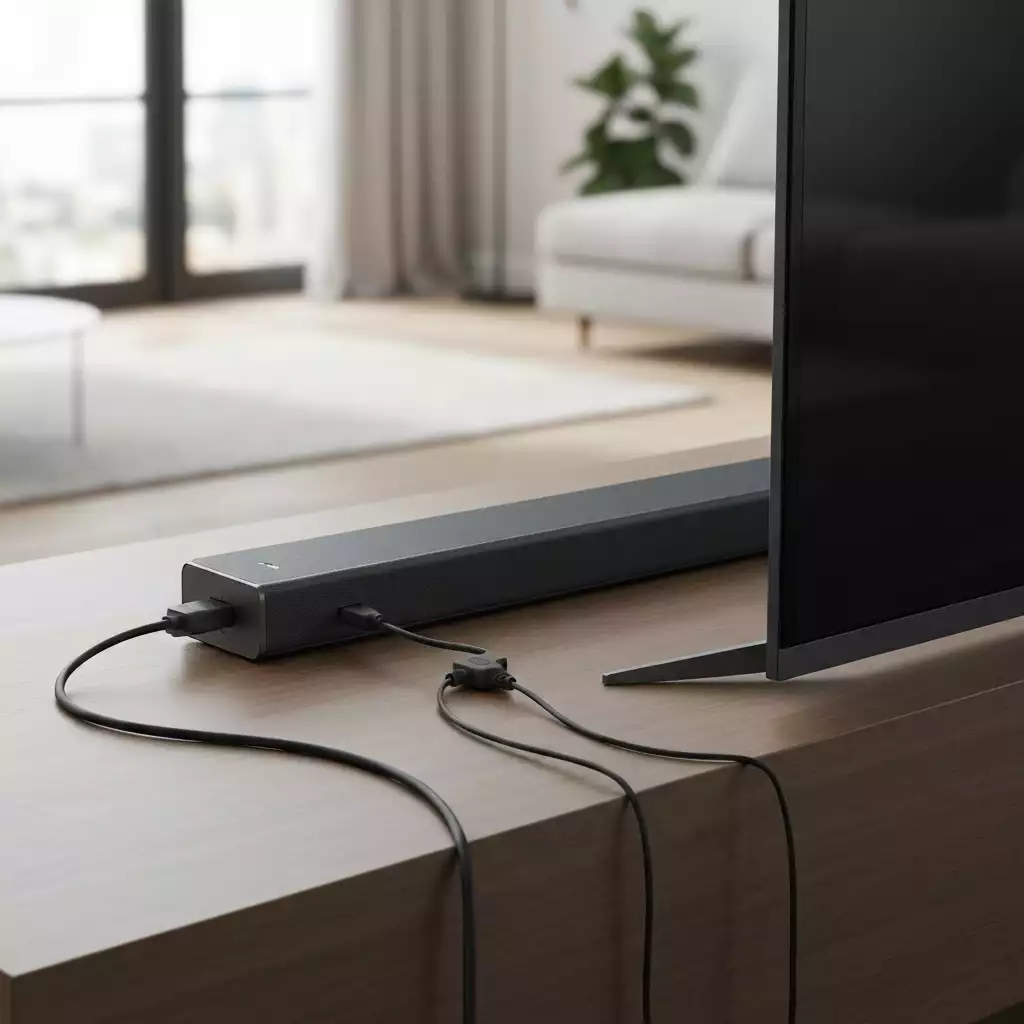
One of the first steps in troubleshooting is ensuring that your Samsung soundbar and TV are compatible. This means checking if your TV supports the necessary features like ARC (Audio Return Channel) or eARC (Enhanced Audio Return Channel).
To identify compatibility, consider the following:
Check the model numbers of both your soundbar and TV.
Look for HDMI ports labeled with ARC or eARC on your TV.
Consult your product manuals for specific compatibility information.
By ensuring that your devices are compatible, you can often prevent many common issues from arising. Let’s keep the momentum going by discussing the key audio settings that can enhance your sound experience!
Key Audio Settings for Optimal Performance
Once you’ve confirmed compatibility, the next step is adjusting the audio settings on both your TV and soundbar. These settings play a crucial role in ensuring that your devices communicate effectively and deliver high-quality sound.
For optimal performance, make sure to adjust the following settings:
Enable Surround Sound or Dolby Atmos on your soundbar, if available.
Check the audio output settings on your TV to ensure they’re set to external speakers.
Disable any sound enhancements or processing that may interfere with the soundbar’s performance.
By carefully tuning these settings, you can enhance the overall audio experience and resolve many potential issues before they escalate. Now that we’ve covered the basics, let’s move on to troubleshooting steps to get your soundbar back in action!
Frequently Asked Questions About Samsung Soundbar Connectivity
Q: What are the common symptoms of a Samsung soundbar not connecting?
A: Common symptoms include no sound output, inability to pair the soundbar with the TV, intermittent audio drops, and delayed audio responses.
Q: How do I check if my TV and soundbar are compatible?
A: You should check the model numbers of both devices, look for HDMI ports labeled ARC or eARC on your TV, and consult your product manuals for specific compatibility information.
Q: What audio settings should I adjust for optimal performance?
A: Ensure Surround Sound or Dolby Atmos (if available) is enabled on your soundbar, set your TV’s audio output to external speakers, and disable any sound enhancements that might interfere.
Q: When should I contact Samsung support?
A: If you’ve tried all troubleshooting steps without success, it’s time to contact Samsung support. Be prepared with your soundbar and TV model numbers, a list of steps you’ve already attempted, and any unusual symptoms.
Q: Can I share my own troubleshooting experiences?
A: Yes, we encourage you to share your experiences and solutions in the comments section to help others in the community facing similar challenges.
We Want to Hear From You!
Have you encountered any unique challenges with your Samsung soundbar that we haven’t covered? Share your thoughts or experiences below:
Their team can provide insights that go beyond basic troubleshooting and may identify more complex problems affecting your setup.
Don’t hesitate to gather information about your specific model, what you’ve attempted, and any symptoms you’re experiencing before contacting them.
This will help the support team understand your situation better and assist you more effectively!
Gather model numbers of your soundbar and TV.
List the troubleshooting steps you have already tried.
Note any unusual symptoms you’ve observed.
By being prepared, you can speed up the process and hopefully resolve your issues more quickly!
Taking the Next Steps for Your Audio Setup
Now that you’ve learned how to troubleshoot your Samsung soundbar, I invite you to share your experiences and solutions in the comments below!
I’m always eager to hear what has worked for others in our community, and your insights could help someone else facing similar challenges.
Feel free to ask any questions you have as well; I’m here to assist you on your audio journey. Let’s work together to ensure your home entertainment system delivers the amazing sound quality you deserve!
Share your troubleshooting success stories.
Ask for advice on specific models or issues.
Join the conversation about audio setups and enhancements.
Remember, we’re all in this together, striving for the perfect audio experience in our homes!
Recap of Key Points
Here is a quick recap of the important points discussed in the article:
Common symptoms of connection issues include no sound, pairing failures, and audio delays.
Ensure your TV and soundbar are compatible by checking model numbers and ARC/eARC support.
Adjust key audio settings like Surround Sound or Dolby Atmos for optimal performance.
If problems persist, gather model information and troubleshooting steps before contacting Samsung support.
Engage with the community by sharing experiences and seeking advice on audio setups.