Did you know that proper audio connection settings can significantly impact your home theater experience? A reliable connection between your Samsung TV and soundbar is crucial for enjoying your favorite shows and movies to the fullest.
What You Will Learn
- Understand the three main connection methods: HDMI ARC, eARC, and Bluetooth.
- Identify common symptoms indicating connection issues between your TV and soundbar.
- Follow a step-by-step guide to troubleshoot and fix connectivity problems.
- Recognize the importance of device compatibility and firmware updates for optimal performance.
- Learn how to effectively use features like HDMI-CEC/Anynet+ for improved integration.
How to Troubleshoot Samsung TV and Soundbar Connection Issues
This visual guide outlines common connection methods and a step-by-step troubleshooting process for Samsung TV and soundbar issues.
Connection Methods
- • HDMI ARC/eARC
- • Bluetooth
- • TV SoundConnect
- • SoundShare
Enables single-cable control and high-quality audio.
Common Issues
- • TV not recognizing soundbar
- • Audio out of sync/delayed
- • No sound
- • Compatibility problems
Symptoms range from no sound to delayed audio.
Basic Troubleshooting Steps
- • Check HDMI cables
- • Enable HDMI-CEC/Anynet+
- • Reset soundbar
- • Re-pair Bluetooth
Essential checks for common connectivity problems.
Advanced Solutions
- • Use optical cables
- • Check firmware updates
- • Power cycle devices
- • Integrate SmartThings
When basic fixes don’t resolve the issue.
#samsung-tv-soundbar-visualizer section:hover { transform: translateY(-5px); } @media (max-width: 768px) { #samsung-tv-soundbar-visualizer section { flex-basis: 100%; max-width: 100%; } }
Troubleshooting Steps for Samsung TV and Soundbar Connection Issues
When it comes to enjoying your favorite shows and movies, having a reliable connection between your Samsung TV and soundbar is crucial. If you’re facing issues, don’t worry! I’m here to guide you through some effective troubleshooting steps that can help you get everything back to working order. Let’s tackle these problems together!
In this section, we’ll cover the common methods of connecting your devices, identify symptoms of connection issues, and provide a comprehensive step-by-step guide on how to fix them. By the end, you’ll have a clearer understanding of how to establish a robust connection between your Samsung TV and soundbar.
Understanding Common Connection Methods
Before diving into troubleshooting, it’s essential to understand the various methods you can use to connect your Samsung TV to your soundbar. There are a few popular options that you might consider:
- HDMI ARC (Audio Return Channel)
- eARC (Enhanced Audio Return Channel)
- Bluetooth connections
Each of these methods has its own advantages and can provide high-quality audio. HDMI ARC and eARC, for instance, allow for a single cable connection that transmits both audio and video, making setup easier. On the other hand, Bluetooth offers a wireless solution, giving you flexibility in where you place your soundbar.
Exploring HDMI ARC, eARC, and Bluetooth Options
To elaborate, HDMI ARC enables you to control your soundbar with your TV remote, simplifying the user experience. eARC enhances this feature with higher audio bandwidth, which is great for formats like Dolby Atmos. Meanwhile, Bluetooth offers a hassle-free pairing option, though it may not always deliver the same audio quality as wired connections.
It’s important to note that not all soundbars and TVs support these features equally. Always check your device specifications to see which connection methods are available!
How TV SoundConnect and SoundShare Work
Samsung also offers proprietary technologies such as TV SoundConnect and SoundShare that make streaming audio easier. TV SoundConnect allows for a quick wireless connection between your Samsung devices, while SoundShare helps you connect your soundbar seamlessly via Wi-Fi.
Both options are designed to simplify the process, but remember that they may require your devices to be compatible. If you encounter difficulties, switching back to HDMI or Bluetooth might be your best bet!
Identifying the Problem: Why Your Samsung TV Won’t Connect to Soundbar
Now that we’ve laid the groundwork for connection methods, let’s identify why your Samsung TV might not be connecting to your soundbar as expected. Recognizing the symptoms can help us target the issue effectively.
- Your TV isn’t recognizing the soundbar
- Audio is out of sync or delayed
- No sound comes from the soundbar
These problems can stem from various issues, ranging from incorrect settings to hardware malfunctions. The next step is to pinpoint what you’re experiencing, so we can dive deeper into solutions!
Typical Symptoms of Connection Issues
Some of the most common symptoms include your TV displaying “no audio device found,” or the soundbar not responding when the TV is playing audio. If you’ve noticed any of these signs, it’s time to troubleshoot. The first thing I recommend is checking the volume levels on both devices; sometimes it’s a simple oversight!
Additionally, you might experience an audio delay, which can be frustrating. This too can often be resolved with the right adjustments in settings. Let’s keep exploring!
Common User Errors and Misunderstandings
Believe me, I’ve seen it all when it comes to common user mistakes. Many people forget to switch their sound output settings or assume their devices are automatically paired. Remember to check that your TV is set to send audio to the correct output! It’s a quick fix that can save you a lot of headaches.
Also, ensure your soundbar is powered on and set to the right mode, whether it’s HDMI, Bluetooth, or optical. With a little attention to these details, you might solve the problem in no time!
Identifying Device Compatibility Issues Between Samsung TV and Soundbar
In some cases, the issue could be related to device compatibility. Not every Samsung TV and soundbar is designed to work perfectly together, especially older models. If you’re using a soundbar that’s not fully compatible with your TV, you might encounter connectivity issues.
Take a moment to review the specifications of both devices. If you’re unsure, don’t hesitate to reach out for assistance or check Samsung’s support resources for compatibility information!
Step-by-Step Guide to Fixing Connection Problems
Ready to tackle those connection problems? Here’s a straightforward guide to help you through the process of checking and fixing your Samsung TV and soundbar connection issues!
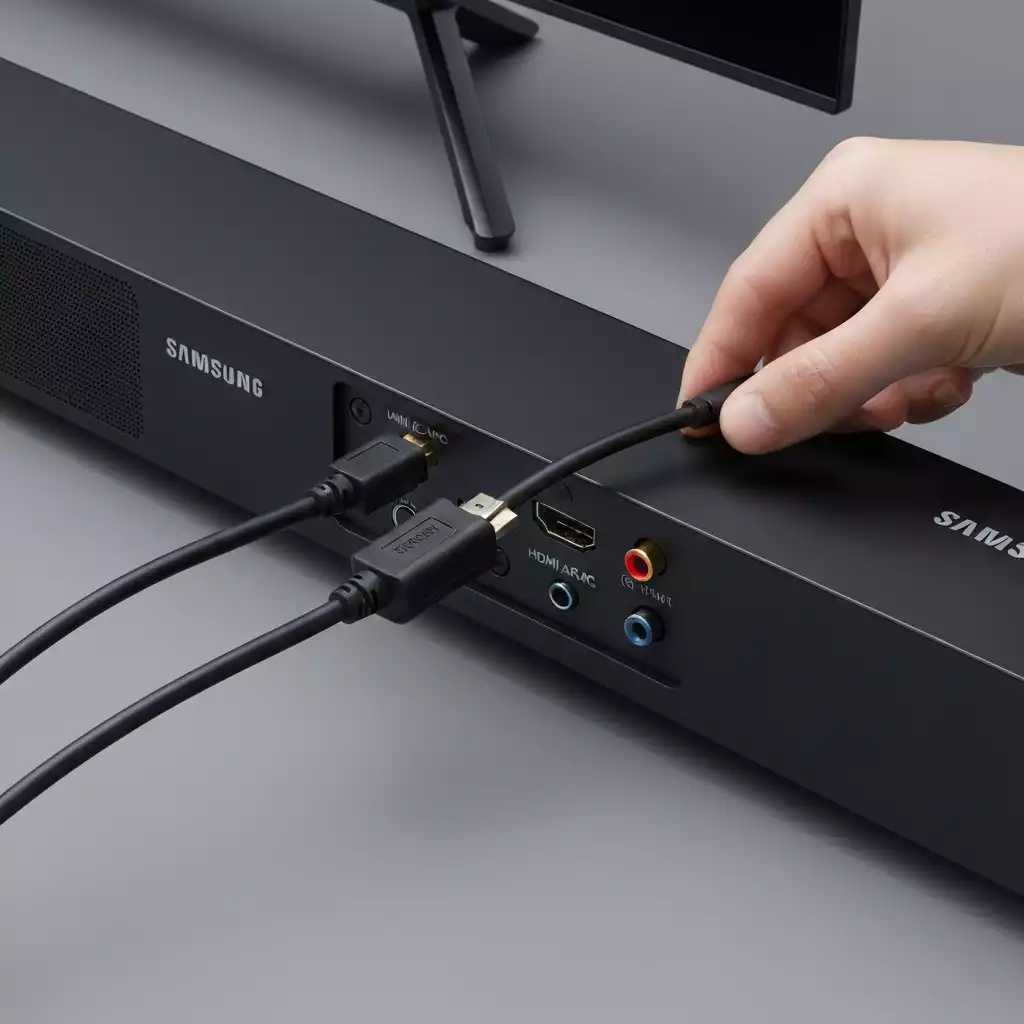
- First, check all HDMI connections and cables for secure fittings.
- Enable HDMI-CEC/Anynet+ settings on your TV for seamless integration.
- Consider resetting your soundbar if problems persist.
- Re-pair your soundbar with Bluetooth if you’re using a wireless connection.
- Adjust your TV audio output settings for optimal performance.
This list covers essential steps that can greatly enhance your setup. Let’s dive deeper into each step to ensure everything runs smoothly!
How to Check HDMI Connections and Cables
The first step to a successful connection is ensuring your HDMI cables are properly connected. It’s crucial to use high-speed HDMI cables to support features like ARC. Unplugging and re-plugging the cables can sometimes do the trick!
Don’t forget to check for any visible damage to the cables as well. If you notice fraying or bending, it might be time to replace them.
Enabling HDMI-CEC/Anynet+ for Seamless Integration
Next, make sure to enable the HDMI-CEC feature on your Samsung TV, which is often referred to as Anynet+. This feature allows your devices to communicate effectively. You can usually find this option in your TV settings under “General” or “External Device Manager.”
Once enabled, your soundbar should automatically switch on and off with the TV, providing a smoother experience!
Resetting the Soundbar: Effective Methods and Tips
If you’re still having trouble, resetting your soundbar can be a great way to start fresh. Different models may have specific methods for resetting, so consult your user manual for guided instructions.
Generally, you can press and hold the power button for a few seconds, or use a combination of buttons depending on your soundbar model. This simple step can often resolve lingering issues.
Re-Pairing Your Soundbar with Bluetooth
For Bluetooth connections, re-pairing can help fix connectivity problems. Begin by disconnecting the soundbar from your TV and then re-initiating the pairing process. Make sure both devices are in pairing mode while trying to connect.
Remember, sometimes interference from other Bluetooth devices can cause issues, so try to minimize other active connections during the pairing!
Adjusting TV Audio Output Settings for Optimal Performance
Last but not least, check your TV’s audio output settings. Sometimes, your TV might be set to output audio through the built-in speakers instead of the soundbar. Make sure to select the soundbar as your primary audio output in the settings!
Additionally, looking into audio formats like PCM can enhance sound quality significantly. Adjusting these settings can lead to a far more enjoyable audio experience.
Device-Specific Troubleshooting for Different Samsung Models
Are you using an older Samsung model? Or perhaps a newer one? Troubleshooting steps can vary based on the specific model of your TV or soundbar. Let’s explore the differences!
- Check the user manual for model-specific instructions.
- Look for unique features that may exist in newer models.
- Investigate any specific compatibility notes for your devices.
This approach ensures you’re getting the best guidance tailored to your specific setup!
Instructions for 2015 vs. 2016+ Samsung TV Models
For Samsung TVs manufactured before 2016, you may need to focus more on physical connections like HDMI and optical cables. In contrast, newer models often emphasize wireless connections and smart features. Make sure to follow instructions tailored to your model year to avoid unnecessary complications.
If you’re not sure which model you have, the back of your TV usually has a label with the model number. Checking this can save you time!
Pairing Subwoofers with Your Soundbar
If you have a subwoofer as part of your sound system, pairing it with your soundbar can enhance audio performance. Most Samsung soundbars offer a straightforward pairing process. Look for the pairing button on the subwoofer and follow the instructions provided with your soundbar!
Having a subwoofer can really amplify your home theater experience, and getting it set up correctly is worth the effort!
Additional Solutions: When Basic Fixes Don’t Work
If you’ve gone through all these steps and are still facing issues, don’t lose hope! There are additional solutions you can explore.
- Consider using optical cables as an alternative connection method.
- Check for firmware updates on your devices.
- Power cycle your devices to resolve connectivity issues.
These steps can provide alternative routes to reconnect your devices and enhance audio quality!
Using Optical Cables as an Alternative Connection Method
Optical cables can be a reliable alternative if HDMI connections aren’t working. These cables don’t carry audio through the same pathways as HDMI, which can sometimes bypass troublesome connection issues.
Simply plug one end into the optical output on your TV and the other into your soundbar. Ensure you select the appropriate input on your soundbar to hear audio.
Checking for Firmware Updates on Your Devices
Sometimes, connectivity issues can stem from outdated software. Regularly checking for firmware updates on your TV and soundbar can mitigate these problems. Visit the settings menu of each device to check for available updates.
Keeping your devices updated ensures you benefit from the latest features and bug fixes!
Power Cycling Your Devices to Resolve Connectivity Issues
Don’t underestimate the power of a simple restart! Power cycling your devices can help clear out temporary glitches that may be causing connection issues.
To do this, unplug both your TV and soundbar from the power source, wait for about 30 seconds, then plug them back in. This often helps refresh the connection.
Frequently Asked Questions About Samsung TV and Soundbar Connections
Before we wrap up, let’s address some common questions you might have regarding Samsung TV and soundbar connections. Here are a few FAQs that can help clarify your concerns!
- What to do when your TV does not detect the soundbar?
- How can you check if HDMI ARC is functioning properly?
- What are common causes of audio delay and how to fix them?
These questions are crucial for diagnosing and resolving connectivity problems effectively. Let’s explore the answers in detail in the next sections!
FAQs: Samsung TV and Soundbar Connectivity
- Q: My Samsung TV isn’t recognizing my soundbar via HDMI ARC. What should I do?
- A: First, ensure both devices are powered off, then unplug and replug the HDMI cable. Make sure you’re using the HDMI ARC port on both devices. Next, verify that HDMI-CEC (Anynet+) is enabled in your TV’s settings. If the issue persists, try power cycling both the TV and soundbar, and check for any available firmware updates for both devices.
- Q: How can I fix audio lag or sync issues between my Samsung TV and soundbar?
- A: Audio delays can often be resolved by adjusting the audio delay settings on your soundbar or TV. Check your soundbar’s manual for specific instructions on adjusting audio sync. If using an HDMI connection, ensure it’s a high-speed cable. Sometimes, changing the audio output format on your TV (e.g., from Bitstream to PCM) can also help.
- Q: What are the main differences between HDMI ARC and eARC, and which should I use?
- A: HDMI ARC (Audio Return Channel) allows audio to be sent from your TV to your soundbar via a single HDMI cable. eARC (Enhanced Audio Return Channel) is an upgraded version that supports higher bandwidth and advanced audio formats like Dolby Atmos and DTS:X, providing superior sound quality. If both your TV and soundbar support eARC, it’s generally the better option for the best audio experience. If only ARC is supported, that will still provide a good connection.
- Q: Why is there no sound coming from my soundbar despite being connected to my Samsung TV?
- A: Several factors can cause this. First, check that the volume on both your TV and soundbar is turned up and not muted. Confirm that the correct input source is selected on your soundbar (e.g., HDMI ARC, Optical, Bluetooth). Also, ensure your TV’s audio output settings are configured to send audio to the external speaker (soundbar) rather than its internal speakers. If all else fails, try resetting your soundbar to its factory settings.
- Q: Can I connect my Samsung soundbar wirelessly to my TV, and how?
- A: Yes, many Samsung soundbars can connect wirelessly via Bluetooth. To do this, put your soundbar into Bluetooth pairing mode. On your Samsung TV, navigate to the Sound Output settings and select “Bluetooth Speaker List” or “Audio Device List” to find and pair with your soundbar. Some older Samsung devices also support proprietary technologies like TV SoundConnect or SoundShare for wireless connections.
Interactive Poll: Your Connection Experience
Have you faced any connection issues between your Samsung TV and soundbar? Share your experience with us!
Summarizing Solutions for Samsung TV and Soundbar Connectivity
As we wrap up our troubleshooting journey for Samsung TV and soundbar connectivity issues, it’s crucial to focus on the key solutions we’ve discussed. Understanding how to resolve these issues can significantly enhance your viewing experience. Getting the right connections and settings in place ensures that you can enjoy your favorite shows and movies without interruption!
In summary, here are some key takeaways from our troubleshooting process that can help you maintain an optimal connection between your devices:
- Always check your HDMI connections and cables—make sure they’re securely plugged in.
- Utilize the HDMI-CEC/Anynet+ feature for seamless integration between devices.
- Reset your soundbar when experiencing connectivity lags or issues.
- Ensure your TV’s audio output settings are configured correctly.
These steps can make a substantial difference in resolving connection issues. Remember, keeping up with the latest settings and configurations helps ensure a smooth audio-visual experience!
Key Takeaways from the Troubleshooting Process
One of the most important aspects of troubleshooting your Samsung TV and soundbar is understanding the importance of correct settings and connections. A simple misconfiguration can lead to frustrating experiences! Always double-check that the right inputs are selected on both your TV and soundbar.
Staying updated with firmware is equally important. Firmware updates can bring improvements in performance and compatibility with new technologies. Regularly check for updates to keep your devices running smoothly!
Understanding the Importance of Correct Settings and Connections
Correct settings and connections form the foundation of a great home theater experience. Often, connection issues arise from:
- Improperly configured settings on the TV or soundbar
- Using the wrong connection type (like HDMI instead of optical)
- Incompatible audio settings between devices
By ensuring that every setting is in its right place, you can minimize the chances of unexpected issues cropping up during movie night.
Why Staying Updated with Firmware Matters
Keeping your devices updated can prevent many common connectivity problems. Firmware updates can enhance performance and fix bugs. It’s advisable to check for updates regularly:
- Go to the settings menu on your TV and soundbar.
- Select the software update option.
- Follow the prompts to download and install any available updates.
Being proactive with firmware updates can save you time and headaches down the line!
Evaluating the Role of Surround Sound and Audio Settings in Your Experience
The surround sound experience is often what makes watching TV enjoyable. Ensuring your audio settings are properly configured can elevate your entire viewing experience. Adjusting settings like PCM audio can lead to better sound quality, making all the difference when you’re watching action-packed scenes or listening to your favorite music.
Don’t forget to explore the sound modes available on your soundbar to find the one that suits your needs best!
Encouragement to Take Action and Resolve Connection Issues
If you’ve been struggling with your Samsung TV and soundbar connection, now’s the time to take action! Following the troubleshooting steps we discussed can lead to quick fixes and restore your home theater experience to its full potential.
Here are some steps to implement for quick fixes:
- Check all physical connections before diving into settings.
- Reset both the TV and soundbar if problems persist.
- Make use of the HDMI-CEC feature for easy control.
These simple actions can often resolve most issues without a lot of fuss!
Resources for Further Support and Guidance
If you continue to encounter problems after trying the above solutions, don’t hesitate to reach out for support. We’re always here to help with any specific questions you may have!
Additionally, the Samsung support website offers a wealth of resources, including manuals and user forums. Utilizing these can provide deeper insights into your specific model’s quirks and features.
Connecting SmartThings for Enhanced Home Theater Experience
Finally, I encourage you to consider integrating your Samsung devices with SmartThings. This can significantly enhance your home theater experience by allowing you to control your devices seamlessly from your smartphone. With SmartThings, you can:
- Manage your TV and soundbar settings from one app.
- Set up automation for your devices based on your daily routine.
- Enjoy a more cohesive and responsive home theater setup.
Let’s take those final steps to optimize your setup and enjoy every moment of your viewing experience!
Recap of Key Points
Here is a quick recap of the important points discussed in the article:
- Understand connection methods: HDMI ARC, eARC, and Bluetooth are key options for connecting your Samsung TV to a soundbar.
- Check for compatibility issues between your devices to avoid connectivity problems.
- Always ensure HDMI connections and cables are secure and functioning properly.
- Utilize the HDMI-CEC/Anynet+ feature for easier device integration.
- Regularly check for firmware updates to maintain optimal performance.
- Adjust your TV audio output settings to ensure sound is directed to the soundbar.
- If issues persist, consider using optical cables or resetting your soundbar for troubleshooting.