
Did you know that connecting your Samsung soundbar to Wi-Fi can elevate your audio experience to new heights? By leveraging the advantages of a stable Wi-Fi connection, you can enjoy superior sound quality and seamless streaming from multiple devices.
What You Will Learn
- Wi-Fi provides superior sound quality compared to Bluetooth, ensuring a better listening experience.
- You can connect multiple devices simultaneously without the hassle of switching connections.
- The SmartThings app allows for easy control of your soundbar directly from your smartphone or tablet.
- Check compatibility and download the SmartThings app before starting the setup process.
- Regular firmware updates are crucial for optimal performance of your soundbar.
Key Steps for Wi-Fi Soundbar Connection and Benefits
This visual outlines the process and advantages of connecting your Samsung Soundbar to Wi-Fi, emphasizing key requirements and benefits.
Benefits of Wi-Fi Connection
- Superior Sound Quality
- Multi-device Connectivity
- App Control (SmartThings)
Essential Requirements
- Wi-Fi Compatible Soundbar
- SmartThings App
- Stable Wi-Fi Network
@media (max-width: 768px) {
#soundbar-wifi-visual-container section {
flex-basis: 100%;
max-width: 100%;
}
}
Step-by-Step Guide to Connecting Your Samsung Soundbar to Wi-Fi
Connecting your Samsung soundbar to Wi-Fi can significantly enhance your audio experience. It allows for seamless streaming from various devices and services, giving you the flexibility and freedom that Bluetooth simply can’t match. In this guide, I’ll walk you through the steps to get your soundbar online, ensuring you enjoy your favorite shows and music with the best sound quality possible.
One of the main benefits of using Wi-Fi over Bluetooth is the improved sound quality. Wi-Fi provides a more stable connection with less interference, allowing for higher fidelity audio. Plus, the convenience of controlling your soundbar from your smartphone or tablet through the SmartThings app makes the process even easier!
Understanding the Benefits of a Wi-Fi Connection for Your Soundbar
Before diving into the connection process, let’s explore why a Wi-Fi connection is the way to go. First and foremost, Wi-Fi allows for better audio streaming without the limitations of range that Bluetooth has. This means you can move around your home without losing the connection.
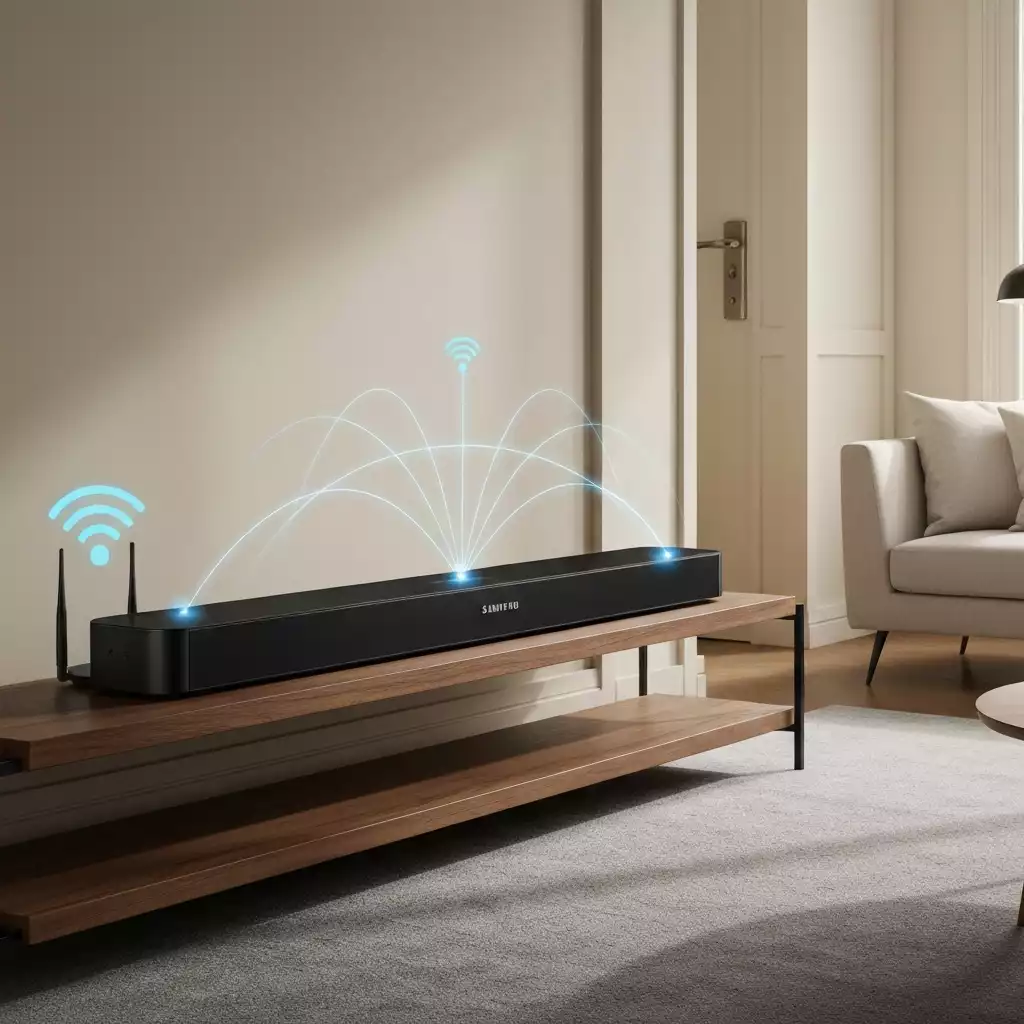
- Superior Sound Quality: Wi-Fi connections generally provide higher sound quality compared to Bluetooth.
- Multi-device Connectivity: Easily connect multiple devices simultaneously without needing to switch.
- App Control: Use the SmartThings app for a user-friendly interface to control your soundbar.
Overall, the benefits of a Wi-Fi connection only enhance your listening experience. It truly makes enjoying music and movies effortless!
Essential Requirements Before You Begin
Before we start the setup process, it’s crucial to ensure you have everything you need. First, check if your soundbar is compatible with Wi-Fi. Most modern Samsung soundbars support this feature, but it’s always good to double-check.
- Samsung Soundbar Model: Make sure your model supports Wi-Fi connectivity. If you need assistance, Samsung provides detailed instructions on connecting soundbars to a TV via Wi-Fi.
- SmartThings App: Download the app from the Google Play Store or Apple App Store.
- Wi-Fi Network: Ensure you have a stable Wi-Fi connection to which your soundbar can connect. For general setup guidance, you can refer to Samsung’s support pages for soundbar connections.
Once you’ve gathered all necessary equipment and verified compatibility, you are ready to connect your soundbar to Wi-Fi!
Pro Tip
To enhance your audio experience even further, consider adjusting your soundbar’s equalizer settings through the SmartThings app. Tailoring bass, treble, and midrange frequencies can significantly improve sound quality based on your room’s acoustics and your personal preferences.
Frequently Asked Questions (FAQs)
Q: Why should I connect my Samsung soundbar to Wi-Fi instead of Bluetooth?
A: Wi-Fi offers superior sound quality compared to Bluetooth due to a more stable connection and less interference. It also allows for multi-device connectivity and greater range, meaning you can control your soundbar and stream audio from anywhere in your home without losing connection.
Q: What is the SmartThings app and why do I need it?
A: The SmartThings app is a user-friendly application from Samsung that allows you to easily control your soundbar from your smartphone or tablet. It provides an intuitive interface for managing settings, streaming content, and performing other functions, making your audio experience more convenient.
Q: How can I check if my Samsung soundbar is Wi-Fi compatible?
A: Most modern Samsung soundbars support Wi-Fi connectivity. You can check your soundbar’s user manual or the product specifications on the Samsung website to confirm compatibility. If in doubt, refer to Samsung’s official support resources.
Q: What are the essential requirements before I start the Wi-Fi connection process?
A: Before connecting, ensure you have a Wi-Fi-compatible Samsung soundbar model, the SmartThings app installed on your smartphone or tablet, and a stable Wi-Fi network available in your home.
Q: Is it important to keep my soundbar’s firmware updated?
A: Yes, regularly updating your soundbar’s firmware is crucial for optimal performance, ensuring you have the latest features, bug fixes, and security enhancements for the best possible audio experience.
Summary of Key Steps and Considerations
As we wrap up our guide, let’s recap the main points regarding the setup process and troubleshooting for connecting your Samsung soundbar to Wi-Fi. Getting your soundbar connected can really enhance your listening experience, providing a cleaner sound and more features.
Here’s a quick checklist of the key steps we covered:
- Download and install the SmartThings app for easy setup.
- Ensure your soundbar is compatible with your home Wi-Fi network.
- Use the Source button on your soundbar for seamless connection.
- Check for any potential connectivity issues and troubleshoot as needed.
- Keep your firmware updated for the best performance.
These steps will not only help you connect your soundbar but also ensure that you maximize its performance. Remember, a stable Wi-Fi connection opens up a world of sound possibilities!
Engage with Us and Share Your Experience
Now that you’re all set up, we’d love to hear from you! Have you successfully connected your Samsung soundbar to Wi-Fi? What challenges did you face, and how did you overcome them? Sharing your experiences can help others in our community!

Feel free to drop your questions or comments below. Whether you need further guidance on soundbar setup, troubleshooting, or just want to chat about sound quality, we’re here to help! Your insights matter, and together we can make the most out of our audio experiences.
Recap of Key Points
Here is a quick recap of the important points discussed in the article:
- Utilizing Wi-Fi enhances sound quality compared to Bluetooth, providing a more stable and higher fidelity audio experience.
- Connect multiple devices simultaneously without the need to switch, thanks to Wi-Fi’s multi-device connectivity.
- Download the SmartThings app for a user-friendly interface to control your Samsung soundbar.
- Ensure your soundbar model is compatible with Wi-Fi before beginning the setup process.
- Check that your Wi-Fi network is stable and ready for connection to the soundbar.
- Keep the firmware of your soundbar updated to ensure optimal performance.


Pingback: Easy Steps to Connect Your Samsung Soundbar to a Subwoofer