Connecting your Samsung soundbar correctly can transform your audio experience. With several connection methods available, understanding their unique benefits is key. Dive into this guide to discover how to maximize your sound quality!
What You Will Learn
- Different connection methods: HDMI, optical, Bluetooth, and Wi-Fi, each with unique advantages.
- Step-by-step instructions for setting up your Samsung soundbar via HDMI for optimal sound quality.
- How to connect using an optical cable, a straightforward alternative if HDMI isn’t available.
- Tips for enhancing your audio experience through sound settings adjustments.
Samsung Soundbar Connection Methods: A Quick Reference
This visual guide outlines the primary methods for connecting your Samsung soundbar, highlighting key features and steps for each.
HDMI (ARC/eARC)
Advantages: High-quality audio (supports advanced formats), video transfer, ARC/eARC features for simplified setup.
- Step 1: Locate HDMI ARC port on TV.
- Step 2: Connect one end to TV ARC port.
- Step 3: Connect other end to soundbar HDMI.
- Step 4: Select correct input on TV.
Optical Cable
Advantages: Digital audio connection, good sound quality, simpler than HDMI for some setups.
- Step 1: Identify optical ports on TV & soundbar.
- Step 2: Plug one end into TV optical out.
- Step 3: Connect other end to soundbar optical in.
- Step 4: Adjust TV audio settings.
Bluetooth
Advantages: Wireless convenience, clutter-free setup, good for mobile device streaming.
- Step 1: Put soundbar in pairing mode.
- Step 2: Enable Bluetooth on TV/device.
- Step 3: Select soundbar from device list.
- Step 4: Confirm pairing.
Wi-Fi
Advantages: Multi-device integration, streaming support, higher bandwidth than Bluetooth.
- Step 1: Download SmartThings app.
- Step 2: Add soundbar to app.
- Step 3: Follow in-app instructions to connect to network.
- Step 4: Integrate with other devices.
@media (max-width: 768px) {
#samsung-soundbar-visual-container article {
flex-basis: 100%;
max-width: 100%;
}
}
Understanding How to Connect Your Samsung Soundbar
Connecting your Samsung soundbar properly is crucial for achieving optimal sound quality and enhancing your audio experience. There are several connection methods available, each with its own advantages. In this section, we will cover HDMI, optical, Bluetooth, and Wi-Fi connections to help you determine which is best for your setup.
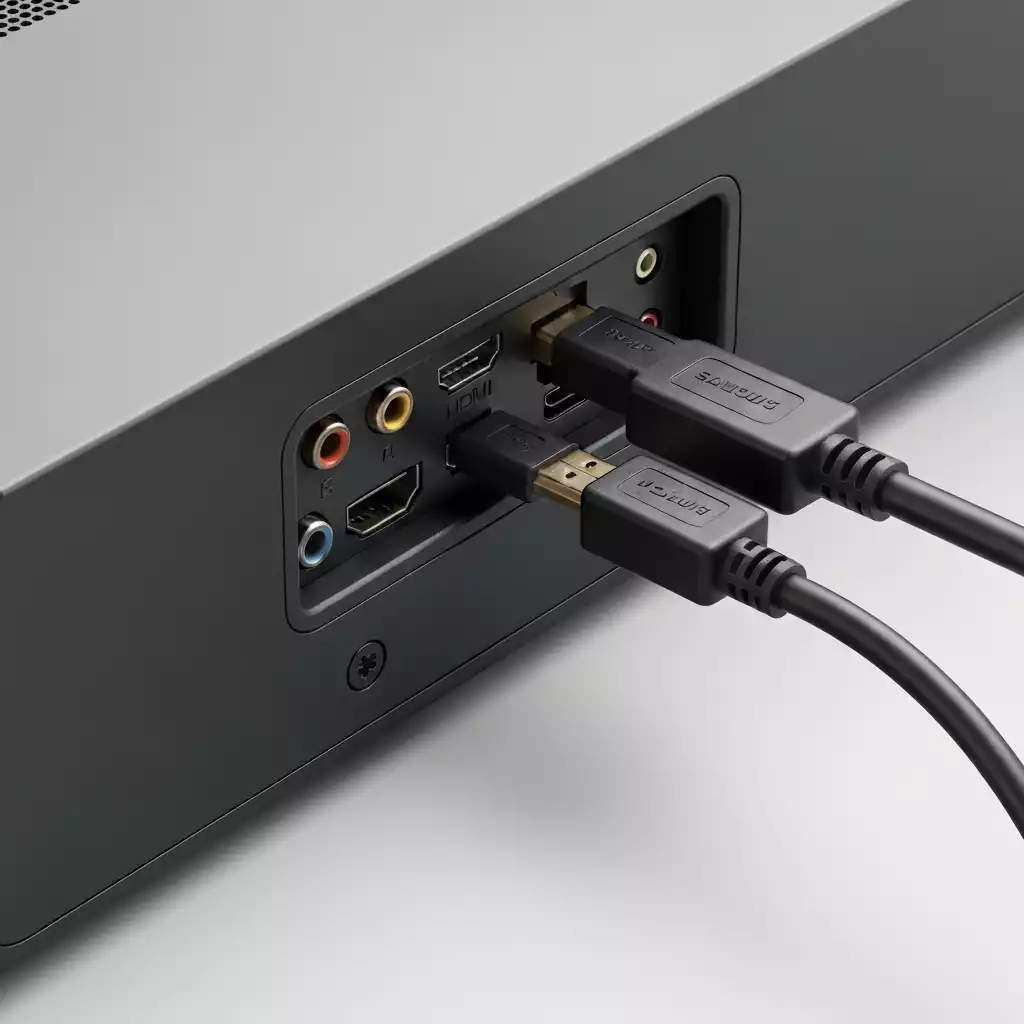
Choosing the right method can significantly impact your sound quality, latency, and overall functionality. Let’s delve into the different types of connections available and what makes each one unique!
Overview of Connection Methods
- HDMI: Allows high-quality audio and video transfer and supports features like ARC (Audio Return Channel) and eARC (Enhanced Audio Return Channel).
- Optical Cable: Provides a digital audio connection with good sound quality, though it lacks some advanced features of HDMI.
- Bluetooth: Offers a wireless solution for connecting your soundbar, making it convenient but potentially introducing latency issues.
- Wi-Fi: Enables multi-device integration and streaming but may require a bit more setup.
Each method has its own strengths and weaknesses, and understanding these can help you make the best choice for your Samsung soundbar. Let’s explore connecting your soundbar via HDMI next!
Connecting Your Samsung Soundbar via HDMI
Steps for HDMI Connection
Using an HDMI connection is one of the best ways to connect your Samsung soundbar because it supports high-quality audio formats and advanced features. Here’s how to do it:
- Locate the HDMI ARC port on your TV. This is usually labeled and may be found on the back or side of your TV.
- Plug one end of the HDMI cable into the HDMI ARC port on your TV.
- Connect the other end to the HDMI port on your soundbar.
- Turn on your soundbar and TV, and select the correct HDMI input on your TV.
By using HDMI ARC or eARC, you can enjoy high-fidelity sound without needing additional audio cables. This is especially useful if you’re looking to achieve a clean, minimalistic setup! For more detailed instructions on connecting your soundbar, you can refer to the official Samsung support page.
Preparing Your HDMI Cable
Before setting up your connection, make sure you have the right HDMI cable. Look for one that supports the latest HDMI standards, such as HDMI 2.0 or higher, to ensure the best performance. It’s also important to check that the cable is long enough to reach between your soundbar and TV comfortably!
Setting Up the Connection
Once you have your HDMI cable ready, it’s easy to set up the connection. Simply follow the steps outlined above, and you’ll have your Samsung soundbar connected in no time. If you encounter any issues, double-check that you’re using the correct HDMI ARC port and that both devices are powered on. Further guidance on setting up your soundbar can be found on Samsung’s UK support site.
Using Optical Cable for Connection
Steps for Connecting via Optical Cable
If HDMI isn’t suitable for your setup, you can connect your soundbar using an optical cable. This method is straightforward and can provide excellent sound quality. Here’s how to do it:
- Identify the optical audio output on your TV and the optical input on your soundbar.
- Plug one end of the optical cable into the TV’s optical port.
- Connect the other end to the soundbar’s optical port.
- Change the audio settings on your TV to output sound through the optical cable.

Using an optical cable is a good alternative if HDMI isn’t available, though it does have some limitations compared to HDMI. You can find more information on various setup methods, including optical connections, on Samsung’s Canadian support page.
Understanding Optical Cable Setup
While optical cables offer reliable audio quality, they lack the advanced features like ARC that HDMI provides. The main advantage is simplicity and compatibility with various older devices. It’s a solid option if you want to keep things straightforward.
Pro Tip
To maximize your Samsung soundbar’s performance, consider investing in a high-quality HDMI cable. Look for cables that support HDMI 2.1 for the latest features and best audio quality. This simple upgrade can significantly enhance your listening experience, especially if you enjoy high-definition content!
Recap of Samsung Soundbar Connection Techniques
When it comes to connecting your Samsung soundbar, there are several methods to choose from, each offering unique benefits. We’ve covered the four primary connection techniques: HDMI, optical cable, Bluetooth, and Wi-Fi. Here’s a quick recap of the steps for each method:
- HDMI: Connect using the HDMI ARC port on your TV for the best audio quality.
- Optical Cable: Plug one end into the soundbar and the other into the optical output on your TV.
- Bluetooth: Pair your devices through the Bluetooth menu on both your soundbar and TV.
- Wi-Fi: Use the SmartThings app to connect your soundbar to your home network.
Each connection method has its own advantages, such as superior sound quality with HDMI or the convenience of Bluetooth. Always choose the one that best suits your setup!
Frequently Asked Questions About Samsung Soundbar Connections
Here are some common questions about connecting your Samsung soundbar:
- Q1: What is the best way to connect my Samsung soundbar for optimal sound quality?
- A1: The best method is typically via HDMI (ARC/eARC) as it supports high-quality audio formats and features like Audio Return Channel for simplified setup.
- Q2: Can I connect my Samsung soundbar wirelessly?
- A2: Yes, you can connect your Samsung soundbar wirelessly using either Bluetooth for direct device pairing or Wi-Fi through the SmartThings app for multi-device integration and streaming.
- Q3: What should I do if my TV does not have an HDMI ARC port?
- A3: If your TV lacks an HDMI ARC port, the best alternative is to use an optical cable connection. This provides reliable digital audio quality, although it doesn’t support advanced features like ARC.
- Q4: How do I adjust sound settings to enhance my audio experience after connecting the soundbar?
- A4: After connecting, you can enhance your audio experience by experimenting with equalizer settings, activating surround sound configurations, and ensuring your soundbar’s software is updated. These adjustments can be accessed through your soundbar’s remote or the SmartThings app.
- Q5: Why is my soundbar not producing sound after connecting it?
- A5: First, ensure both the soundbar and TV are powered on. Then, check that the correct input source is selected on your TV (e.g., the specific HDMI ARC port you used) and that the TV’s audio output settings are configured to send sound to the soundbar (e.g., “External Speaker” or “HDMI ARC”). Also, verify all cables are securely connected.
Next Steps for Enhancing Your Audio Experience
Now that you have connected your Samsung soundbar, let’s explore ways to enhance your audio experience. Adjusting settings can significantly improve the sound quality and overall enjoyment of your media. I recommend diving into your sound settings to tweak features like equalizer settings and surround sound options.
- Experiment with the equalizer settings to tailor the sound to your liking.
- Activate surround sound configurations for a more immersive audio experience.
- Check for software updates to ensure your soundbar is performing at its best.
These adjustments can make a substantial difference! It’s worth taking the time to optimize your setup.
Engagement and Resources
To further enhance your understanding of your Samsung soundbar features, I encourage you to check out some helpful resources. Watching tutorial videos can provide visual guidance on various setups and settings. Here are a few options to consider:
- Visit the official Samsung support page for detailed guides.
- Look for YouTube tutorials that cover specific features and optimization tips.
- Join online communities or forums to share experiences and ask questions.
Engagement with these resources can help you unlock the full potential of your soundbar and keep your audio experience top-notch!
Recap of Key Points
Here is a quick recap of the important points discussed in the article:
- HDMI: Connect using the HDMI ARC port on your TV for the best audio quality.
- Optical Cable: Plug one end into the soundbar and the other into the optical output on your TV.
- Bluetooth: Pair your devices through the Bluetooth menu on both your soundbar and TV.
- Wi-Fi: Use the SmartThings app to connect your soundbar to your home network.



Pingback: Hisense AX5125H: 2025 Review - Best Sound Bar to Buy