Understanding Audio Delay Causes
- Connection type
- Processing settings
- Device compatibility
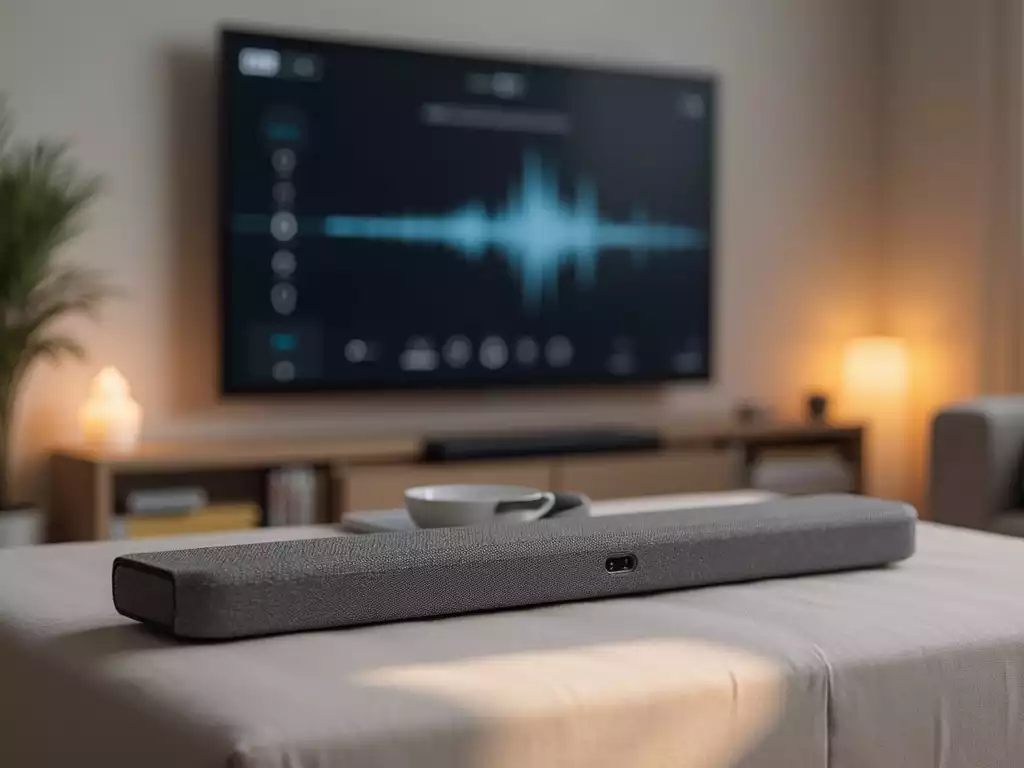
Are you tired of missing key moments in your favorite shows due to frustrating audio delays? Understanding the source of these issues is the first step to regaining your audio-visual harmony. Let’s uncover the essential insights to troubleshoot effectively!
An overview of common causes, solutions, and connections to resolve soundbar audio delay issues.
| Connection Type | Audio Quality | Delay Potential |
|---|---|---|
| HDMI | High, Surround Sound | Low |
| Optical | Good, Stereo/Dolby Digital | Moderate |
Experiencing audio delay with your soundbar can be frustrating, especially when your favorite scene is marred by lip sync issues.
Audio delay refers to the lag between the video and audio signals, causing a disconnect that can detract from your viewing experience. Common culprits include the type of connection used, the soundbar’s settings, and even the processing features on your TV.
Typically, you might notice symptoms such as voices not matching the lip movements on-screen or delayed sounds during action sequences.
These issues can arise from various factors, including how your devices are connected and the settings in play. Let’s dive deeper into identifying and addressing these delays!
Audio delay can be frustrating, and understanding its causes is the first step toward fixing it. There are several reasons why audio may lag behind video:
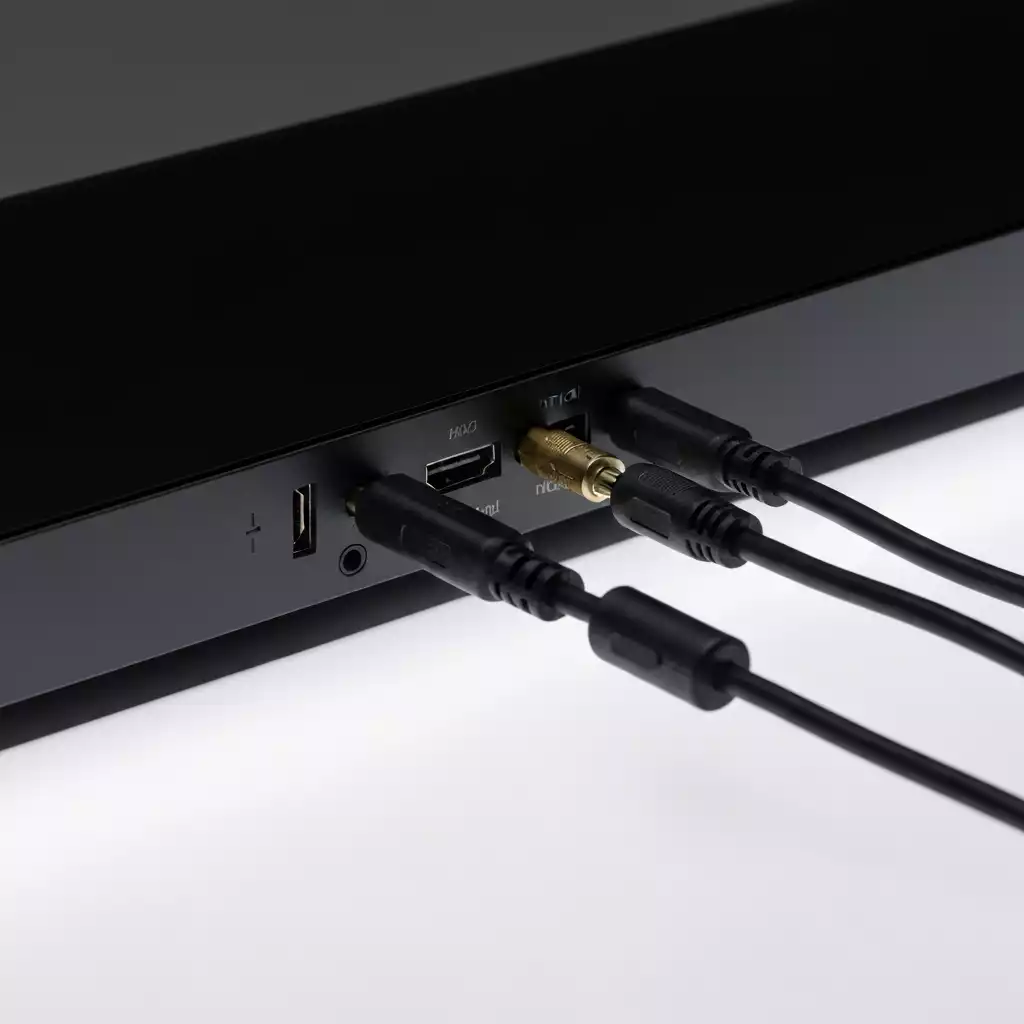
By pinpointing these factors, you can start to troubleshoot effectively. It’s important to note that even a small adjustment can make a big difference in your audio experience!
Recognizing the symptoms of audio delay is crucial for timely fixes. The most common sign is the lip sync problem, where the audio does not match the actors’ lip movements. You might also notice a slight delay after switching between channels or inputs.
For more insights on common audio issues and how to troubleshoot them effectively, you can refer to resources like this Samsung support guide on troubleshooting audio delays.
Once you’ve identified these symptoms, you can take the necessary steps to address the problem. For example, adjusting settings on your soundbar or TV could significantly reduce the delay!
One of the quickest fixes for audio delay is adjusting the audio delay settings on your soundbar. Here’s how to do that:
By experimenting with these settings, you should be able to find a balance that suits your setup and minimizes any lag.
Sometimes, the built-in processing features on your TV and soundbar can contribute to audio lag. Here’s how to turn them off:
Doing this can help streamline the signal path, reducing the chances of delay and improving your overall audio experience!
One effective way to reduce audio delay is by using HDMI ARC (Audio Return Channel). This connection type allows for a more direct audio signal:
Using HDMI ARC not only minimizes audio delay but also simplifies your cable management by allowing fewer cables in use!
When setting up your soundbar, the type of connection you choose can greatly impact audio quality and delay. Here’s a quick comparison:
| Connection Type | Audio Quality | Delay Potential |
|---|---|---|
| HDMI | High quality, supports surround sound | Low delay |
| Optical | Good quality, limited to stereo and Dolby Digital | Moderate delay |
Choosing the correct connection type can significantly improve your audio experience, so consider this before making any adjustments!
Another effective method to minimize audio delay is by connecting your source directly to your soundbar first. Here’s how it works:
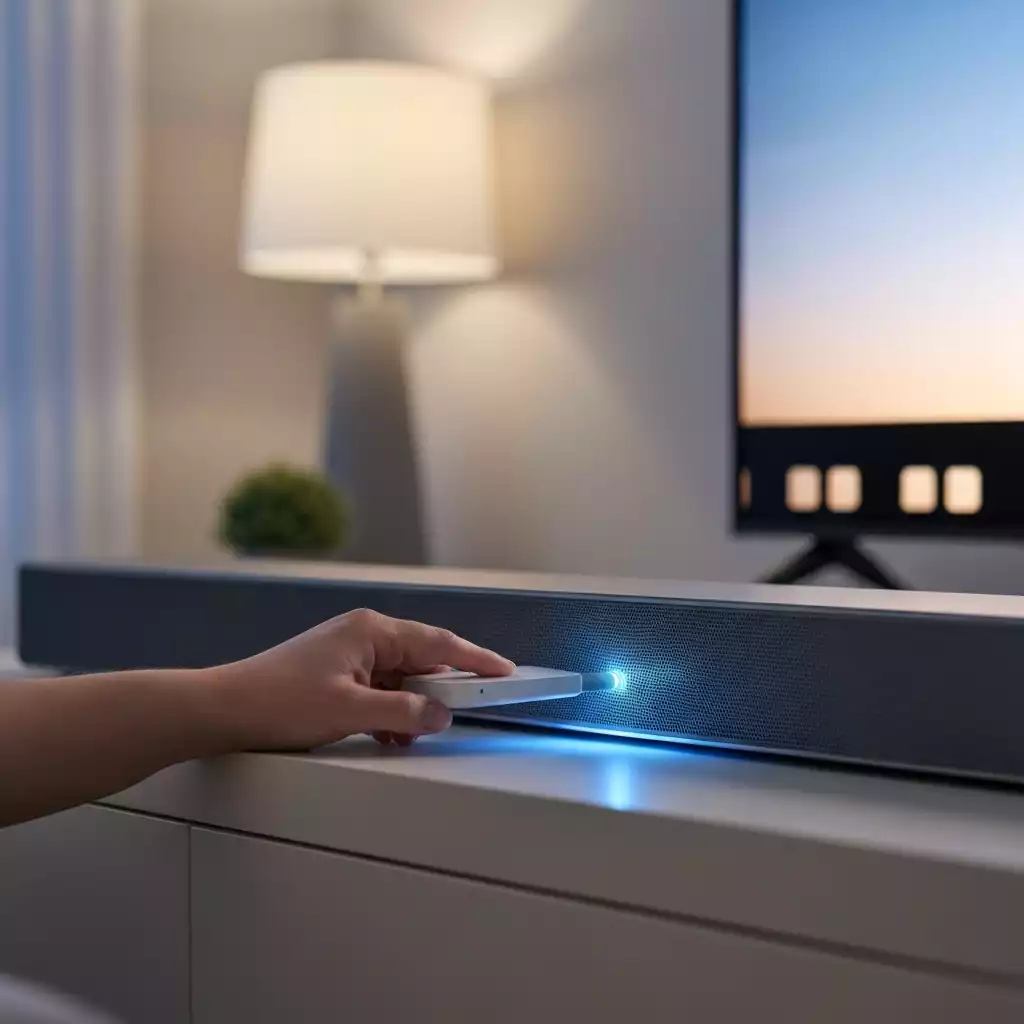
By following this method, you might find that the audio sync improves, providing a better overall viewing experience!
Did you know? Regularly checking and updating your soundbar’s firmware can enhance performance and resolve compatibility issues that might contribute to audio delay. Manufacturers often release updates that improve functionality, so make it a habit to check for updates periodically!
Final Thoughts on Fixing Soundbar Audio Delay
Addressing soundbar audio delay can seem daunting, but with the right steps and adjustments, it can be a straightforward process.
Remember, issues like lip sync problems often arise from simple setup errors or connection choices. By following the troubleshooting methods we’ve discussed, you can significantly improve your sound experience.
Always ensure your settings are optimized for your specific devices, whether that means adjusting the audio delay or selecting the right connection type.
In summary, here are the key troubleshooting steps to keep in mind:
With these tips in hand, I hope you’re feeling empowered to tackle any audio delay issues head-on!
If you’re still experiencing audio delay issues, don’t hesitate to engage with others who might have faced similar challenges.
Online forums and communities are excellent resources where you can share your experiences and learn from fellow enthusiasts.
I often find that discussing solutions with others can unveil new perspectives and methods that you might not have considered.
These platforms can be invaluable for getting personalized advice and connecting with people who share your passion for great sound!
Now that you’ve gathered a wealth of information on fixing soundbar audio delay, it’s time to put it into action! I encourage you to dive right into your troubleshooting efforts and see what works best for your setup.
Remember, every sound system is unique, so not all solutions will apply to you. Document your efforts and results, and don’t hesitate to revisit adjustments as needed.
And hey, once you’ve resolved the issue, I’d love to hear about your experience! Sharing your results not only reinforces your learning but could also help someone else facing a similar challenge!
While resolving audio delay is essential, you might also want to consider enhancing your overall sound experience. Upgrading to a surround sound system or integrating Dolby Atmos can take your audio enjoyment to the next level.
These options offer a more immersive experience and can significantly improve the quality of your home audio setup.
Investing in these technologies can make your movie nights and gaming sessions even more thrilling. Enjoy the journey of discovering what works best for your audio dreams!
Here is a quick recap of the important points discussed in the article:

Pingback: Connect Your Bose Soundbar to TV: Step-by-Step Guide
Pingback: Best Placement Tips for Your Samsung Soundbar Subwoofer