
Ever felt overwhelmed when trying to set up a new audio device? You’re not alone! Many users struggle with the intricacies of connecting sound systems. This guide simplifies the process, helping you enjoy high-quality sound without the hassle.
What You Will Learn
- How to prepare your Samsung soundbar and subwoofer for automatic pairing effectively.
- Step-by-step instructions for initiating an automatic connection and ensuring success with the LINK LED indicator.
- When to opt for manual pairing and detailed steps to connect manually when automatic methods fail.
- Different connection options, including HDMI ARC and optical cables, and their benefits for enhanced audio experience.
- Key tips for troubleshooting common setup issues and ensuring both devices are updated for optimal performance.
Samsung Soundbar and Subwoofer Setup Methods: Automatic vs. Manual
This visual outlines the two primary methods for connecting your Samsung soundbar and subwoofer, highlighting their respective steps and when to use each approach.
Automatic Connection Process
Preparation:
- Devices powered on and close (within 30ft).
- Activate pairing mode on both.
Steps:
- Turn on soundbar & subwoofer.
- Press ‘Pairing’ on soundbar remote.
- Wait for connection.
Success Indicator:
Solid LINK LED on soundbar.
Ideal for quick, hassle-free setup.
Manual Pairing Process
When to Use:
- Devices too far apart.
- Wireless interference.
- Automatic fails repeatedly.
Steps:
- Press & hold ‘ID SET’ on subwoofer.
- Press ‘Function’ on soundbar to ‘D.IN’.
- Press ‘Pairing’ on soundbar remote.
Key:
Hold ‘ID SET’ until subwoofer enters pairing mode.
Resolves common connection issues.
Essential Steps for Setting Up Your Samsung Soundbar and Subwoofer
Setting up your Samsung soundbar and subwoofer can transform your audio experience, making movies and music come alive! In this guide, I’ll walk you through the essential steps to ensure a smooth setup process. Whether you’re an audio novice or a tech enthusiast, we’ll cover everything from automatic connections to manual pairing methods.
To get started, it’s important to understand the different connection options available to you. This will help you choose the best setup for your home entertainment system. Let’s dive in!
Understanding the Automatic Connection Process
The automatic connection process for your Samsung soundbar and subwoofer is designed to be user-friendly. This means you can enjoy high-quality sound without getting bogged down by complex instructions. However, prior to initiating the automatic pairing, there are a few key preparations to consider.
Preparing Your Devices for Automatic Pairing
Before you begin the automatic pairing, make sure both your soundbar and subwoofer are powered on and close to each other. Additionally, check that they are in pairing mode—this usually involves pressing a button on the devices. Having a clear space around the devices also helps prevent any interference during the connection process!
- Ensure both devices are plugged in and powered on.
- Place the soundbar and subwoofer within 30 feet of each other.
- Activate pairing mode on both devices.
Once everything is set up properly, you’ll be ready to initiate the automatic connection process seamlessly.
Initiating Automatic Connection: A Step-by-Step Guide
To begin the automatic connection, follow these simple steps, as detailed on the Samsung UK support page:
- Turn on your soundbar and subwoofer.
- Press the ‘Pairing’ button on the soundbar remote.
- Wait for the soundbar to detect the subwoofer and establish a connection.
After you complete these steps, the devices should connect automatically, allowing you to enjoy an immersive sound experience almost instantly!
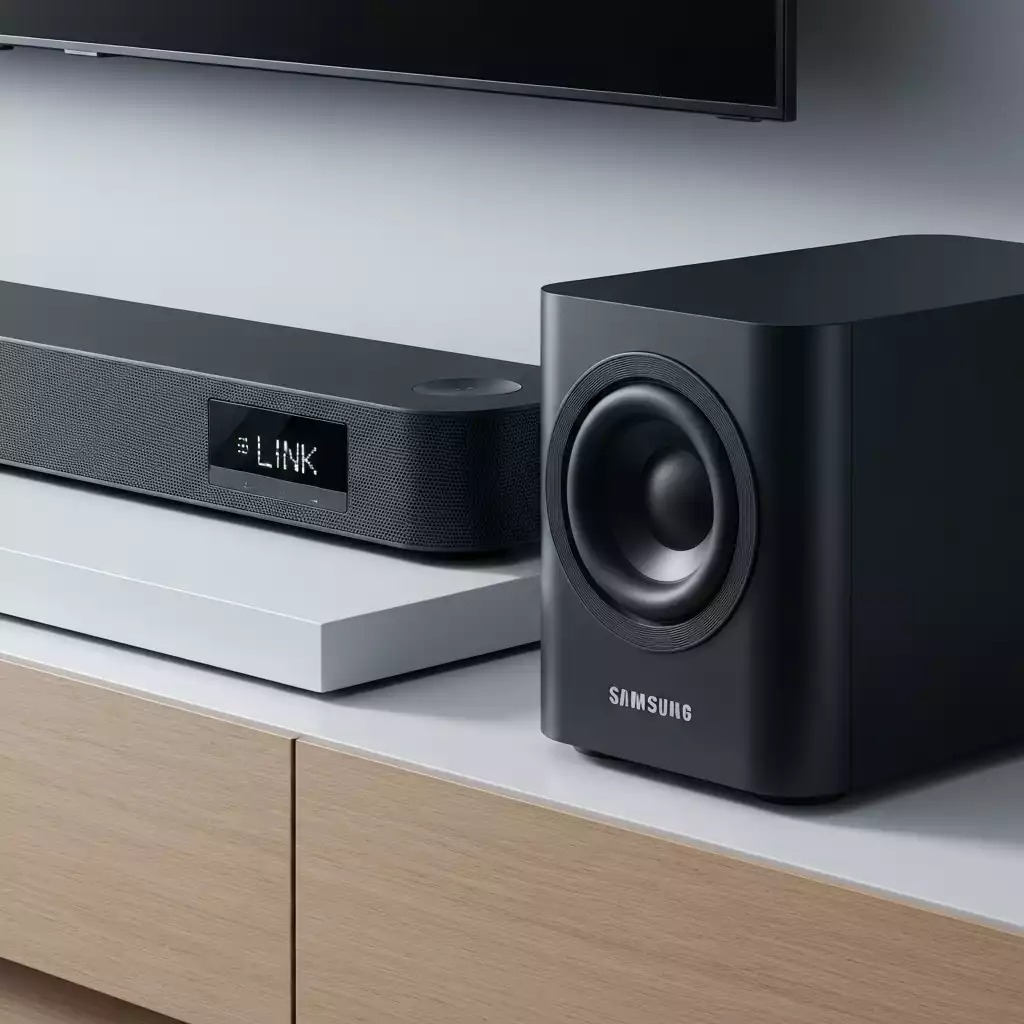
Identifying Connection Success: LINK LED Indicator Explained
After initiating the connection, you’ll want to know if everything went smoothly. Look at the LINK LED indicator on your soundbar. If it’s solidly lit, congratulations—you’re connected! If it’s blinking, it may indicate that the devices are still trying to pair. In that case, simply repeat the above steps until you see that reassuring solid light.
Manual Pairing Process for Samsung Soundbar and Subwoofer
While automatic pairing is convenient, there are times when manual pairing may be necessary. Understanding when to use this method can save you time and frustration during setup.
When to Use Manual Pairing Over Automatic Connection
Consider using manual pairing if:
- Your devices are not close enough for automatic detection.
- You’re experiencing interference from other wireless devices.
- The automatic process fails after multiple attempts.
Using manual pairing can often resolve these common issues, allowing you to connect your soundbar and subwoofer with confidence.
Step-by-Step Instructions for Manual Pairing
Here’s how to manually pair your devices, building on the general setup guidance found on Samsung’s Latin America support site:
- Press and hold the ‘ID SET’ button on the subwoofer until it goes into pairing mode.
- On your soundbar, press the ‘Function’ button until you see ‘D.IN’ on the display.
- Press the ‘Pairing’ button on your soundbar remote to connect.
Manual pairing can seem daunting, but it’s a straightforward process. Trust me, once you get the hang of it, you’ll be good to go!
Utilizing the ID SET Button Effectively
The ID SET button is crucial for establishing a connection. It enables your soundbar and subwoofer to sync with each other efficiently. Make sure to press and hold it long enough until the subwoofer enters pairing mode. This small step is vital for successful manual pairing, and it can make all the difference!
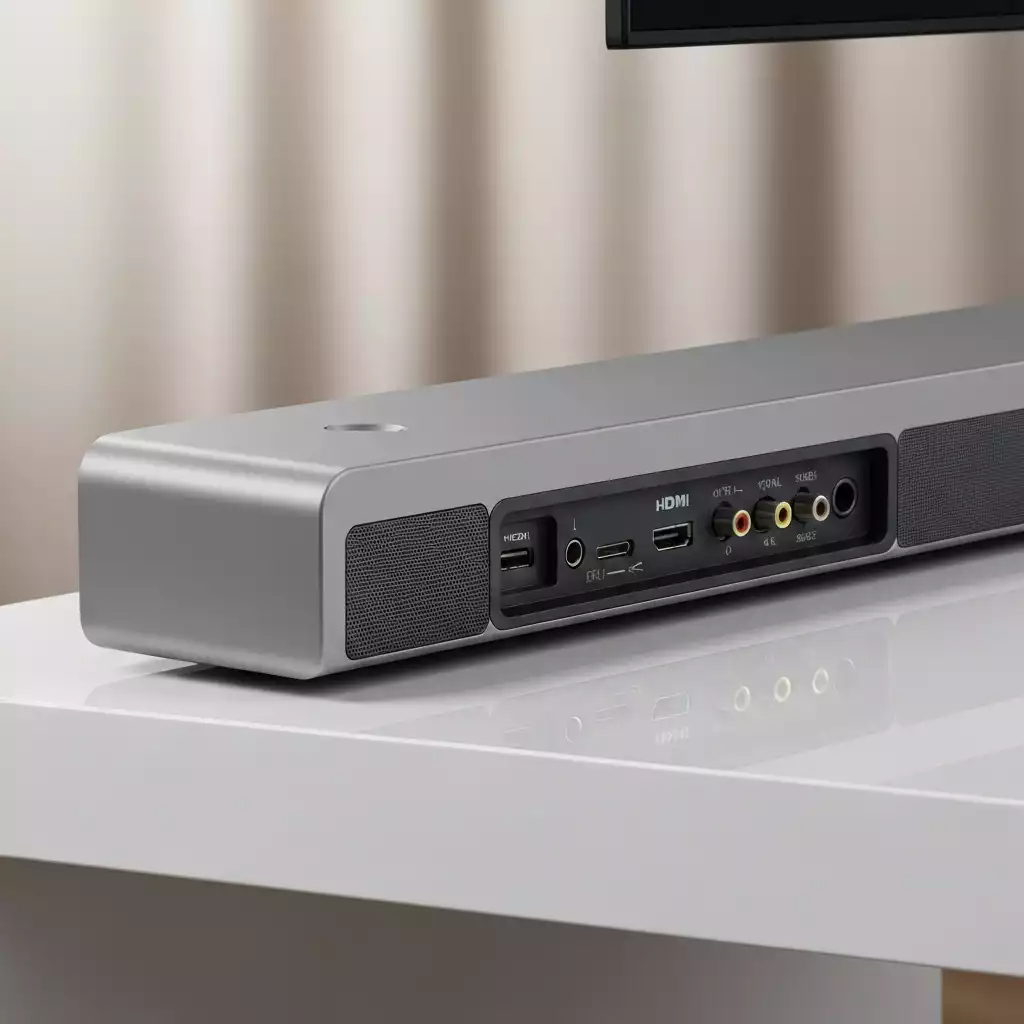
Exploring Connection Options: HDMI, Optical Cable, and More
In addition to pairing, understanding the connection options available for your soundbar and subwoofer will enhance your audio experience. Each option has its benefits, so let’s explore them!
Understanding HDMI ARC for Enhanced Audio
HDMI ARC (Audio Return Channel) is a fantastic feature that allows audio to travel both ways between your TV and soundbar. This means you can enjoy high-quality sound without needing extra cables. Using HDMI ARC not only simplifies your setup but also reduces cable clutter! For more details on connecting via HDMI, you can refer to the official Samsung US support page.
Benefits of Using Optical Cable vs. AUX Cable
Choosing between an optical cable and an AUX cable can impact your sound quality:
- **Optical Cable**: Offers superior sound quality with digital audio transmission.
- **AUX Cable**: Simple and effective for basic setups, but with lower sound fidelity.
For best results, I recommend opting for an optical cable if your devices support it!
Comparing Wired and Wireless Connections for Your Devices
When it comes to wired versus wireless connections, each has its own advantages.
- Wired Connections: Typically offer better sound quality and reliability.
- Wireless Connections: Provide greater flexibility and fewer cables to manage.
Your choice will depend on your specific setup and preferences. Be sure to weigh the pros and cons to find what works best for you!
Pro Tip
For an optimal audio experience, consider adjusting the EQ settings on your soundbar after setup. Many Samsung soundbars come with preset sound modes tailored for different types of content, such as movies, music, or news. Experiment with these settings to find the sound profile that best suits your preferences!
Frequently Asked Questions (FAQs)
Q1: How do I prepare my Samsung soundbar and subwoofer for automatic pairing?
A1: Ensure both devices are plugged in and powered on, place them within 30 feet of each other, and activate pairing mode on both. A clear space around the devices can also help prevent interference.
Q2: What is the LINK LED indicator and what does it signify?
A2: The LINK LED indicator on your soundbar signals the connection status. A solidly lit LED means the devices are successfully connected, while a blinking LED indicates that the devices are still attempting to pair.
Q3: When should I choose manual pairing over automatic connection?
A3: Manual pairing is recommended if your devices are too far apart for automatic detection, if you experience interference from other wireless devices, or if the automatic pairing process fails after several attempts.
Q4: What is HDMI ARC and why is it beneficial for connecting my soundbar?
A4: HDMI ARC (Audio Return Channel) allows audio to travel bi-directionally between your TV and soundbar. This simplifies your setup, reduces cable clutter, and ensures high-quality audio transmission.
Q5: Why are firmware updates important for my soundbar and subwoofer?
A5: Firmware updates are crucial for optimal performance, as they introduce new features, enhance existing functionalities, and fix any bugs. Regularly updating your devices ensures they continue to deliver excellent sound quality and support the latest features.
Wrap-Up and Next Steps for Your Soundbar Setup
As we wrap up our guide on setting up your Samsung Soundbar and Subwoofer, I hope you feel empowered to enjoy your audio experience fully! Taking the time to understand the pairing process and connection options truly pays off when it comes to sound quality. Remember, whether you opted for automatic or manual pairing, each method provides a unique way to enhance your home entertainment.
In conclusion, successfully pairing your devices is just the beginning. I encourage you to explore various settings and features to tailor the sound experience to your liking. Trust me, once you discover how to optimize your audio settings, you’ll be amazed at the difference it makes!
Final Thoughts on Samsung Soundbar and Subwoofer Pairing
Pairing your Samsung Soundbar and Subwoofer shouldn’t be a daunting task. With the right approach, you can enjoy high-quality sound in no time! If you run into any bumps along the way, remember that troubleshooting is part of the process. Here are a few quick tips to consider:
- Always double-check your connections to ensure everything is plugged in properly.
- Make sure both devices are powered on before starting the pairing process.
- Update your soundbar’s firmware regularly for optimal performance.
By following these steps, you can easily navigate the setup process and enjoy an immersive listening experience. Trust me, once you get it right, you’ll never want to go back!
Additional Resources: Visual Guides and Community Support
If you’re looking for more help, there are excellent resources available that can guide you through any remaining concerns. Visual guides can be especially handy, providing step-by-step instructions to make the process even clearer. Here are some resources you might find useful:
- Samsung’s official support website
- YouTube tutorials from audiovisual experts
- Online forums dedicated to Samsung products
These platforms not only offer valuable information but also allow you to engage with other users who may have encountered similar challenges. Don’t hesitate to reach out and share your experiences!
Staying Updated: Importance of Firmware Updates
Keeping your devices updated is crucial for ensuring they function at their best. Firmware updates can bring new features, enhance performance, and fix any bugs that may exist. I can’t stress enough how beneficial it is to regularly check for updates! Here’s what you should do:
- Connect your soundbar to the internet via Wi-Fi or Ethernet cable.
- Navigate to the settings menu and look for the firmware update option.
- Follow the prompts to download and install any available updates.
By maintaining your devices with the latest firmware, you ensure that your Samsung Soundbar and Subwoofer continue to deliver excellent sound quality. Plus, staying updated means you can enjoy any new features that Samsung may roll out, making your listening experience even more enjoyable!
Recap of Key Points
Here is a quick recap of the important points discussed in the article:
- Ensure both your soundbar and subwoofer are powered on and within 30 feet for automatic pairing.
- If automatic pairing fails, consider using manual pairing by following the specific steps outlined.
- Utilize HDMI ARC for a simplified and clutter-free connection that enhances audio quality.
- Optical cables provide better sound quality than AUX cables; choose based on your setup needs.
- Regularly check for firmware updates to enhance performance and access new features for your devices.

Pingback: Step-by-Step Guide to Reset Your Samsung Soundbar