Have you ever found yourself frustrated trying to connect your soundbar to your TV? You’re not alone, many users face this dilemma!
However, with a bit of knowledge and the right troubleshooting steps, you can easily resolve these connection issues and enjoy seamless audio.
What You Will Learn
- Common reasons for soundbar connection failures include loose cables, incompatible connections, and outdated firmware.
- Perform simple diagnostics like checking volume settings and ensuring proper cable connections to quickly resolve issues.
- Power cycling your devices can reset connections and often solve lingering problems.
- Understanding audio format compatibility is essential for optimal sound performance between your soundbar and TV.
- Recognizing when to seek professional help can save time and ensure proper diagnosis of complex issues.
- Prevent future connection issues by regularly updating firmware and using high-quality, compatible cables.
- Utilizing manufacturer support and user manuals can provide tailored troubleshooting advice specific to your devices.
Soundbar Connection Troubleshooting Flow
This diagram illustrates common troubleshooting steps for soundbar connection issues, from initial diagnostics to seeking professional help.
Initial Diagnostics
- ✓ Check Volume & Mute
- ✓ Inspect Cable Connections
- ✓ Power Cycle Devices
Quick checks to resolve common issues.
Advanced Checks
- ✓ Verify Audio Formats
- ✓ Update Firmware
- ✓ Check TV Audio Settings
Ensuring software and compatibility are correct.
Preventative Measures
- ✓ Regular Firmware Updates
- ✓ Use High-Quality Cables
- ✓ Keep Connections Clean
Best practices for long-term reliability.
When to Seek Help
- ⚠ Persistent Errors
- ⚠ Physical Damage
- ⚠ Consult Manufacturer Support
When professional assistance is recommended.
Troubleshooting Soundbar Connection Issues with Your TV
If you’ve ever struggled with getting your soundbar to connect to your TV, you’re not alone! Many users encounter these frustrating issues, often stemming from a variety of hardware and software factors. Understanding the problem is the first step towards a solution.
Common reasons for connection failures can include outdated firmware, incompatible cables, or even incorrect settings on your devices. You might find that a simple adjustment can turn your experience around!
Understanding the Problem: Why Your Soundbar May Not Connect
Let’s dive deeper into some of the most frequent reasons your soundbar may not connect to your TV. First, there could be physical issues, such as a damaged cable or loose connections. These hardware concerns can often be identified with a quick visual inspection.
- Loose connections: Check that all cables are properly seated in their ports.
- Incompatible cables: Ensure you’re using the right type of cable for your devices.
- Power issues: Make sure both your TV and soundbar are fully powered on.
On the software side, problems may arise from outdated firmware or incorrect audio settings on your TV. Keeping your devices updated can help you avoid many connectivity headaches!
Essential Diagnostics Before Diving Deeper
Before jumping into more complex troubleshooting steps, it’s best to perform some simple diagnostics. These checks can often resolve issues quickly and save you time and stress.
- Check volume and mute settings.
- Inspect cable connections for security and compatibility.
- Power cycle your devices.
Check Volume and Mute Settings
Ensure your soundbar isn’t muted and that the volume levels are appropriately set. Sometimes, a simple oversight can lead to sound issues. Give it a quick check; you might be surprised how often this resolves the problem!
Cable Connections and Compatibility
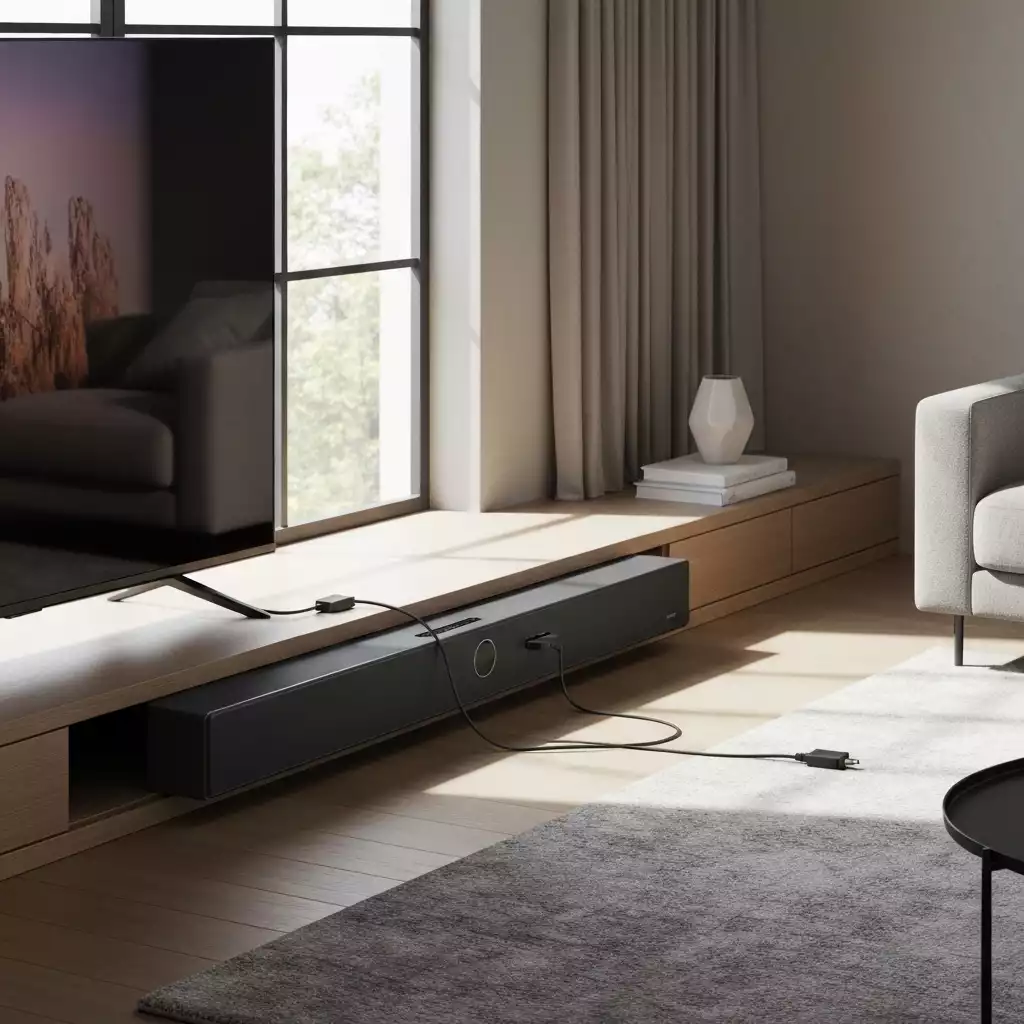
Next, verify that all cables are securely connected and appropriate for your soundbar and TV. For guidance on connecting a soundbar to a Samsung TV, you can refer to this Samsung support page. If you’re using HDMI, make sure it’s plugged into the HDMI ARC port on both devices.
For optical cables, ensure they are not damaged and securely fitted. For LG TV users, detailed instructions on how to connect a soundbar can be found on their LG support page.
Power Cycling Your Devices
If everything seems in order but you’re still facing issues, try power cycling your devices. Simply unplug them from the power source for about 30 seconds and then plug them back in. This can reset the connection and often resolves lingering problems.
Understanding Audio Formats and Compatibility
Lastly, let’s touch on audio formats. Different soundbars and TVs may support various digital audio formats (like Dolby Digital or DTS). If your devices are not compatible, you might face connection issues or subpar sound quality.
By ensuring both your soundbar and TV are compatible with the same audio formats, you can achieve optimal sound performance. Don’t hesitate to consult your user manuals or manufacturer websites for specific compatibility details!
Pro Tip
Did you know? Regularly checking for firmware updates on both your soundbar and TV can significantly reduce the likelihood of connection issues. Keeping your devices up to date ensures they can work together seamlessly, enhancing your overall audio experience!
Frequently Asked Questions About Soundbar Connection Issues
- Q: Why isn’t my soundbar connecting to my TV?
- A: Common reasons include loose cables, incompatible connections, outdated firmware, or incorrect audio settings. Start by checking physical connections and power cycling your devices.
- Q: What is the first thing I should check if my soundbar has no sound?
- A: Begin by checking the volume and mute settings on both your soundbar and TV. Ensure neither device is muted and volume levels are adequate.
- Q: How important are the cables for soundbar connection?
- A: Very important! Ensure all cables are securely connected and are the correct type for your devices (e.g., HDMI ARC, optical). Damaged or incompatible cables can prevent connection.
- Q: What does “power cycling” mean and how does it help?
- A: Power cycling means unplugging your devices from their power source for about 30 seconds and then plugging them back in. This can reset internal connections and resolve temporary glitches.
- Q: Why do I need to check audio format compatibility?
- A: Different soundbars and TVs support various audio formats (e.g., Dolby Digital). If your devices don’t support the same formats, you might experience no sound or poor sound quality. Consult your user manuals for compatibility.
- Q: When should I seek professional help for soundbar connection issues?
- A: If you’ve tried all basic troubleshooting steps and your soundbar still isn’t connecting, or if you notice physical damage or persistent error messages, it’s time to contact manufacturer support or a professional technician.
Next Steps if Your Soundbar Still Isn’t Connecting
If you’ve followed all the troubleshooting advice and your soundbar still isn’t connecting, don’t worry! There are a few additional steps you can take to address the issue. First, it’s essential to remain patient, as these problems can sometimes take a little time to resolve. Here’s what to consider next:
When to Seek Professional Help
Sometimes, the best option is to reach out for help. Here are some clear indicators that it might be time to consult with a technician or customer support:
- Your soundbar and TV are still not connecting after multiple troubleshooting attempts.
- You’re experiencing persistent error messages that you don’t understand.
- Physical damage is evident on cables or connectors.
- Firmware updates are not available or do not resolve the issue.
If you see any of these signs, I recommend contacting a professional. They can diagnose hardware faults or software problems that may be beyond simple fixes!
Preventative Measures for Future Connection Success
Once you’ve resolved the current issue, let’s focus on preventing future connection hiccups. Here are some best practices I recommend for maintaining your soundbar and TV setup:
- Regularly check and update firmware on your soundbar and TV.
- Use high-quality cables that are compatible with your devices.
- Keep your devices’ connections clean and dust-free.
- Avoid overextending cables to prevent wear and tear.
By following these preventative measures, you can enhance your setup’s reliability, ensuring that you enjoy seamless audio experiences in your living space!
Using Manufacturer Support and User Manuals
Don’t underestimate the value of manufacturer support and user manuals! These resources can provide specific advice tailored to your brand and model. Here’s how you can effectively utilize them:
- Locate the user manual for your specific soundbar and TV models.
- Visit the manufacturer’s website for troubleshooting guides and FAQs.
- Contact customer support directly for personalized help.
- Join online forums for your brand where you can find additional tips from fellow users.
Taking advantage of these resources can save you time and frustration, helping you find the right solutions quickly!
Engage with Us for More Personalized Solutions
I’d love to hear about your experiences! If you’re still facing connection challenges or have questions, feel free to share them in the comments below. I’m here to help with tailored troubleshooting assistance to ensure your soundbar and TV work flawlessly together!
Recap of Key Points
Here is a quick recap of the important points discussed in the article:
- Check for loose connections and ensure all cables are securely plugged in.
- Use compatible and high-quality cables for your soundbar and TV.
- Power cycle your devices if issues persist after basic troubleshooting.
- Ensure both devices support the same audio formats for optimal performance.
- Regularly update firmware on your soundbar and TV to avoid connectivity issues.
- Consult user manuals and manufacturer support for tailored troubleshooting assistance.