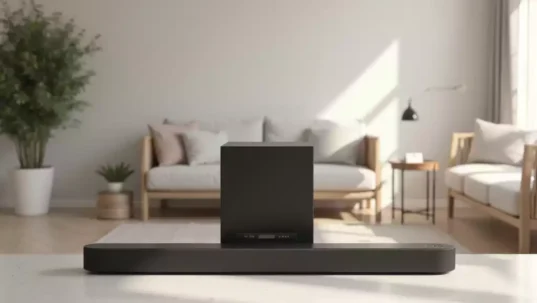
ID SET Button Purpose
- •Pairs soundbar with subwoofer
- •Helps eliminate sound lag
- •Ensures optimal audio performance

Have you ever struggled with syncing your soundbar and subwoofer? The ID SET function on Samsung Soundbars is here to eliminate that hassle and elevate your audio experience!
This visual summarizes the ID SET function, common connectivity options, and key steps for setup and enhancement for Samsung Soundbars.
The ID SET function on Samsung Soundbars plays a crucial role in establishing a reliable connection between your soundbar and subwoofer.
This feature is designed to ensure that both devices can communicate effectively, providing you with the best audio experience possible. Let’s dive deeper into what the ID SET button does and its importance for a seamless setup!
When you press the ID SET button, it allows your soundbar and subwoofer to sync with each other, making sure that they are paired correctly.
This is essential for achieving optimal sound quality, as a well-connected system can enhance your overall listening experience. Without this function, you might encounter issues with sound lag or dropouts, which can be quite frustrating!
The ID SET button serves as a pivotal element in managing your sound system. Primarily, it is used to pair the soundbar with the subwoofer. This ensures that both components work smoothly together, allowing for deeply immersive sound experiences. If you’ve ever wondered how to establish this connection, the ID SET button is your go-to solution.
Understanding its purpose can greatly enhance your audio setup. I often recommend checking this connection if you’re facing sound issues, as it could save you a lot of troubleshooting time!
Establishing a solid connection between your soundbar and subwoofer is vital, as it ensures that the sound output is both rich and coherent. The ID SET function not only simplifies this process but also makes it more efficient, allowing for a quick setup. This is particularly important if you’re frequently rearranging your audio setup!

As someone who loves getting the best sound out of my devices, I can attest that paying attention to the ID SET function can significantly improve your audio experience.
When connecting your Samsung soundbar, you have several options to choose from: HDMI, Optical, and Bluetooth. Each of these connectivity methods offers unique advantages, catering to different user preferences and setups.
Choosing the right connection type will depend on your specific audio needs and the equipment you have. I always recommend considering your current setup before making a decision, as this will influence your sound quality and overall user experience! For more detailed information on your specific model, you can often find your Samsung soundbar model and serial numbers on the support page.
Did you know? Regularly checking and adjusting the placement of your soundbar and subwoofer can significantly enhance sound quality. Experiment with different positions to find the sweet spot that delivers the best audio performance in your space!
To wrap up our discussion on the ID SET function, it’s important to highlight the key steps involved in using this feature effectively. Remember, the ID SET button is your gateway to connecting your soundbar and subwoofer seamlessly. Regularly checking where this button is located on your specific model can save you time and frustration!
By following these steps, you can ensure a smooth pairing experience. If you find that you need additional assistance, don’t hesitate to reach out to customer support or consult your model’s manual for more specific instructions. For general support and troubleshooting, the Samsung Home Theater support page is an excellent resource.
Once you’ve set up your soundbar and subwoofer, enhancing your listening experience is a great next step! Here are some tips to get the most out of your audio setup:
With these adjustments, you’ll enjoy a richer, more immersive sound experience. Pay attention to how various settings affect your audio, and don’t hesitate to experiment until you find what sounds best for you!

The ID SET function is a feature that allows you to wirelessly pair your Samsung soundbar with its subwoofer, ensuring they communicate effectively for optimal audio performance.
It’s crucial for establishing a stable connection between your soundbar and subwoofer, preventing issues like sound lag or dropouts, and ensuring a coherent and rich sound output.
Locate the ID SET button on your soundbar (and sometimes on the subwoofer). Press and hold it until the LED indicator blinks, ensuring the subwoofer is powered on. They should then connect automatically. Test your audio to confirm success.
Samsung Soundbars typically offer HDMI for high-quality audio and advanced formats, Optical for reliable connection with older TVs, and Bluetooth for wireless streaming convenience.
You can enhance sound quality by adjusting bass/treble settings, optimizing the placement of your soundbar and subwoofer, utilizing various audio modes (e.g., surround, movie), and regularly updating the firmware.
If you encounter issues beyond the ID SET function, several resources can help you troubleshoot and resolve problems. Samsung’s official support website is a great starting point, offering a wealth of documentation and guides tailored to your specific model. To find assistance for your specific device, you can use the Samsung device model and serial number lookup.
Don’t hesitate to explore these avenues; sometimes, a simple solution is just a click away!
Visual learning can significantly enhance your understanding of how to set up and optimize your Samsung soundbar. I recommend checking out video tutorials on platforms like YouTube, where you can find step-by-step guides that visually demonstrate the ID SET process. Watching these can make all the difference!
By combining visual aids with the information we’ve discussed, you can increase your confidence in managing your soundbar setup!
Lastly, let’s talk about firmware updates. Keeping your soundbar’s firmware up to date is crucial for optimal performance and access to new features. Firmware updates can fix bugs, enhance connectivity, and improve sound quality. Here’s how to stay on top of updates:
By ensuring you have the latest firmware, you’ll enjoy the best possible experience with your Samsung soundbar. Happy listening!
Here is a quick recap of the important points discussed in the article: